

TON extension for Visual Studio Code (VS Code) and VSCode-based editors
TON extension for Visual Studio Code (VS Code) and VSCode-based editors, such as VSCodium, Cursor, Windsurf, and others.
Installation
From Visual Studio Marketplace
Applicable for: VSCode
Extension on: Marketplace
- In the editor, open the Command Palette with Ctrl+Shift+P (or ⌘+⇧+P on macOS)
- Type and select
Extensions: Install Extensions - Search for
TON - Select the official extension from TON Core and click Install
The editor fetches and installs the extension. Restart the editor to apply changes if prompted.
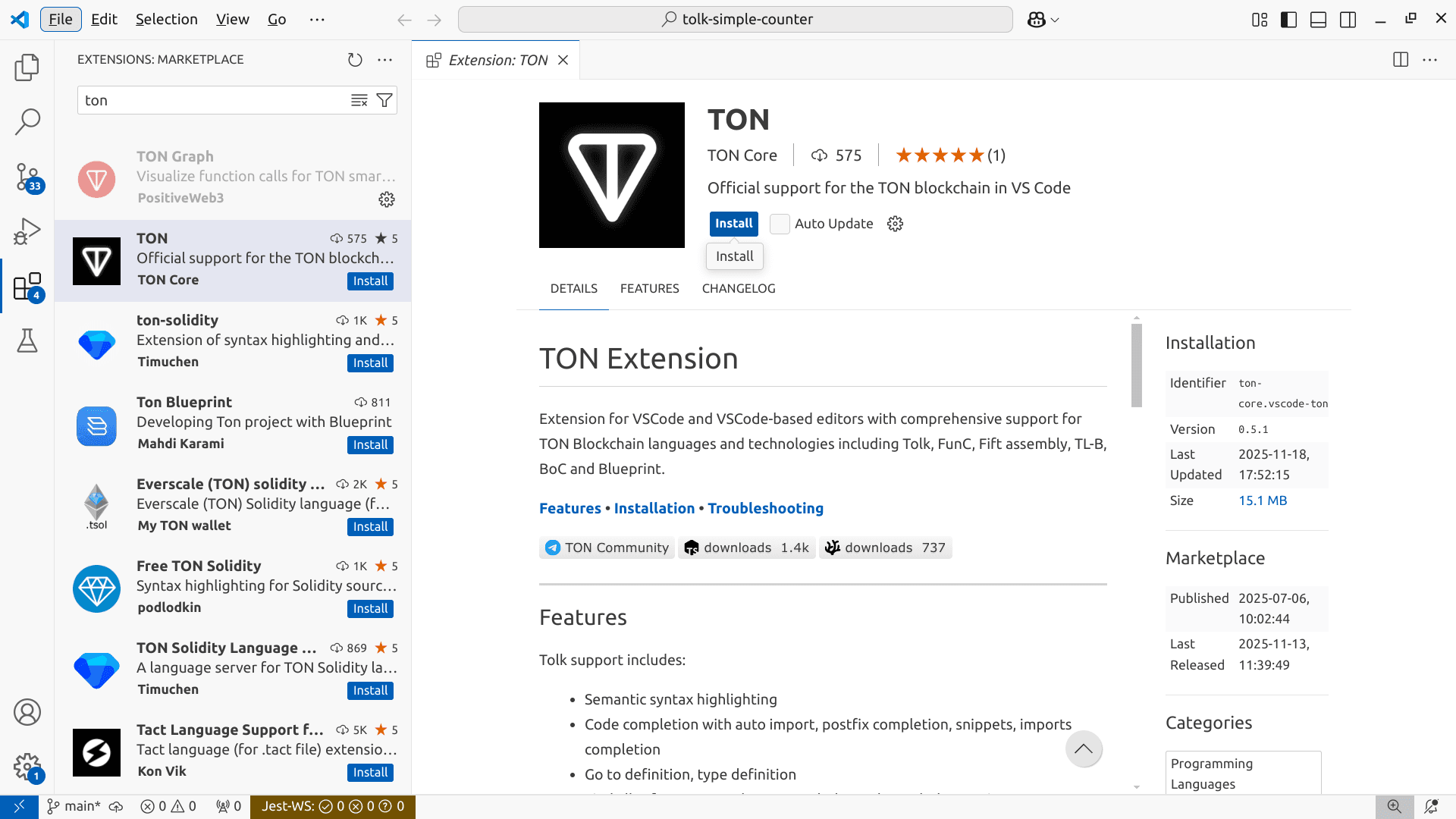
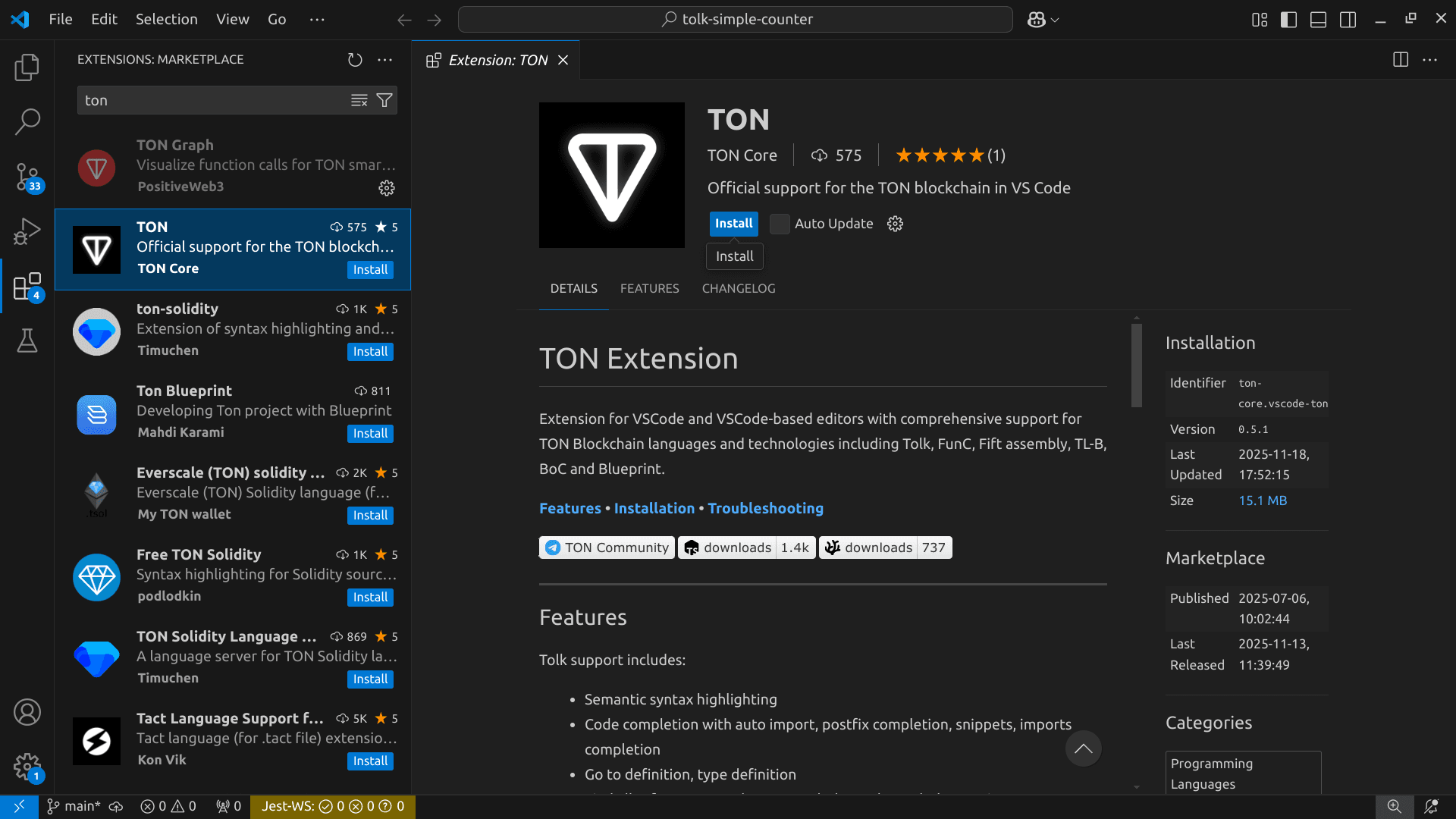
Here is how the extension page may look in VSCode, before pressing the Install button:
From Open VSX Registry
Applicable for: VSCodium, Cursor, Windsurf, and other VSCodium-based editors
Extension in: Registry
Installation steps are identical to the VSCode setup. Additionally, one can download the exact extension version from the Open VSX Registry and then proceed with installation from disk.
From disk
Applicable for: any VSCodium-based editor
VSIX file: latest GitHub release
To manually install the extension:
- Download the
.vsix-packaged plugin archive from the latest GitHub release or from the exact version in the registry - In the editor, open the Command Palette with Ctrl+Shift+P (or ⌘+⇧+P on macOS)
- Type and select
Extensions: Install from VSIX... - Browse and select the downloaded
.vsixfile
The editor installs the extension. Restart the editor to apply changes if prompted.
To install the extension using CLI, specify the editor executable and the --install-extension command-line switch, followed by the path to a .vsix file:
# Command for VSCode
code --install-extension <PATH_TO_EXTENSION.vsix>

# Command for VSCodium
codium --install-extension <PATH_TO_EXTENSION.vsix>

# Other VSCodium-based editors have similar commands
Visual Studio Code’s “Installing an extension from a VSIX” guide explains the process.
Features and language support
Extension provides support for TON Blockchain languages and tools in VSCode and VSCode-based editors: from syntax highlighting to on-the-fly inspections and toolchain management.
Tolk
Recommended language for TON smart contract development
FunC
Legacy TON smart contract programming language
Fift
Low-level stack-based language with deep TVM integration
TL-B
Cell-based data serialization and markup language
TON Assembly (TASM)
Textual TVM bitcode assembly language and corresponding (dis)assembler
Integrations
Work with Acton projects and other tools for TON development
Tolk
File extension: .tolk
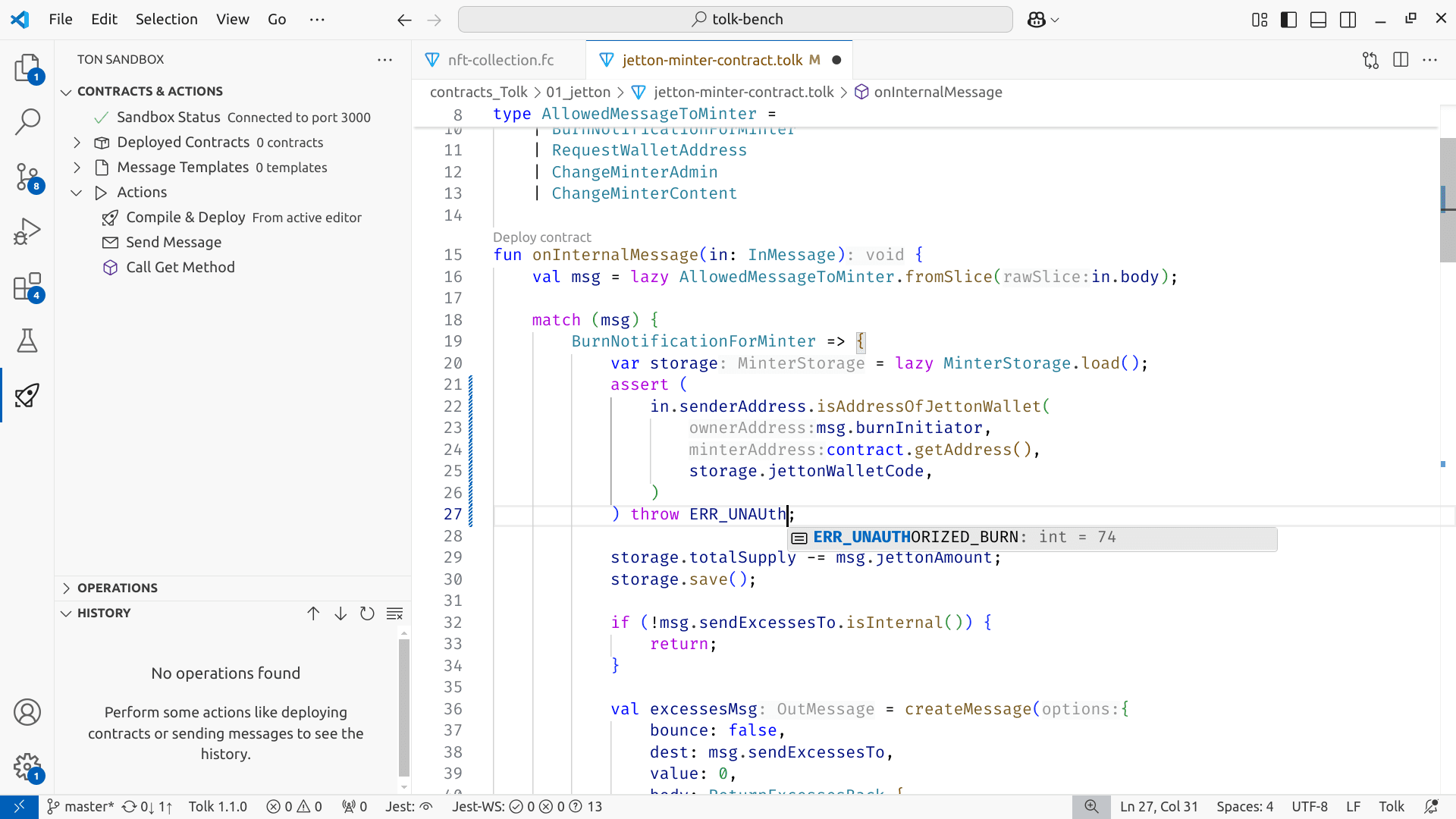
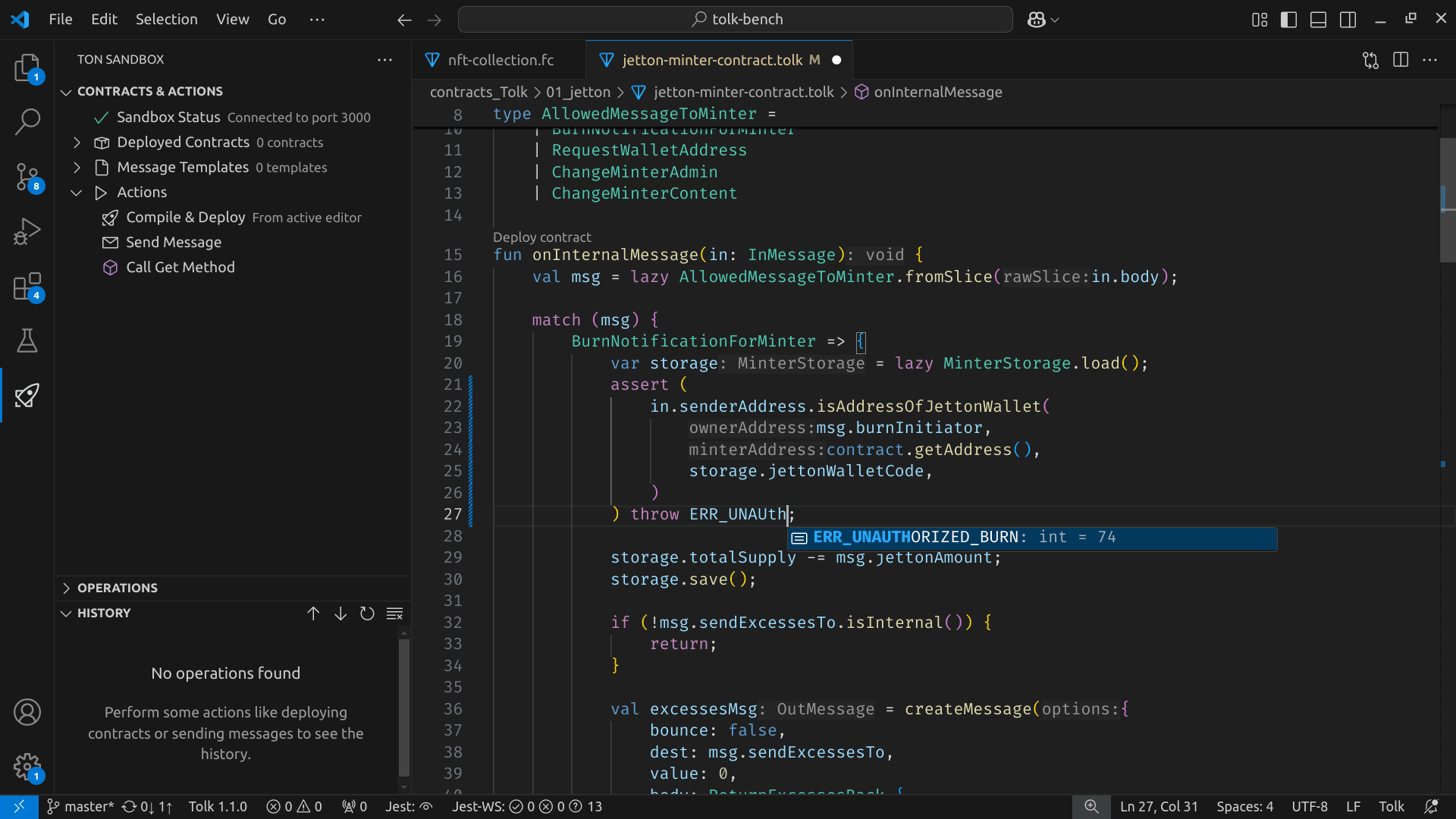
Tolk support includes:
- Semantic syntax highlighting
- Code completion with auto import, postfix completion, snippets, imports completion
- Go to definition, type definition
- Find all references, workspace symbol search, symbol renaming
- Automatic import updates when renaming and moving files
- Types and documentation on hover
- Various inlay hints, including hints for types and parameter names.
- On-the-fly inspections with quick fixes
- Signature help inside calls
- Build, test, and debug Acton-based projects
- Flexible toolchain management
FunC
File extensions: .fc, .func
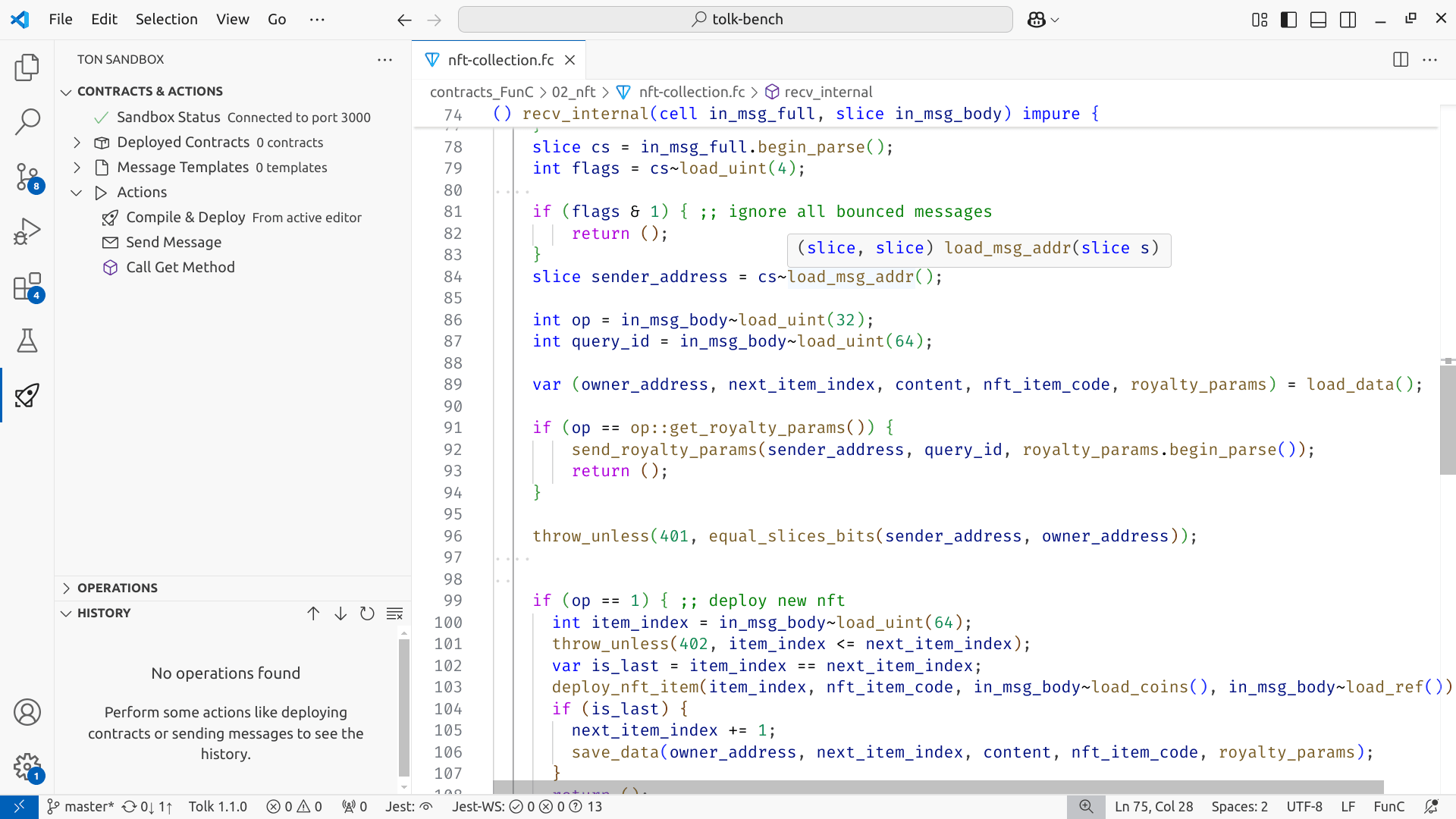
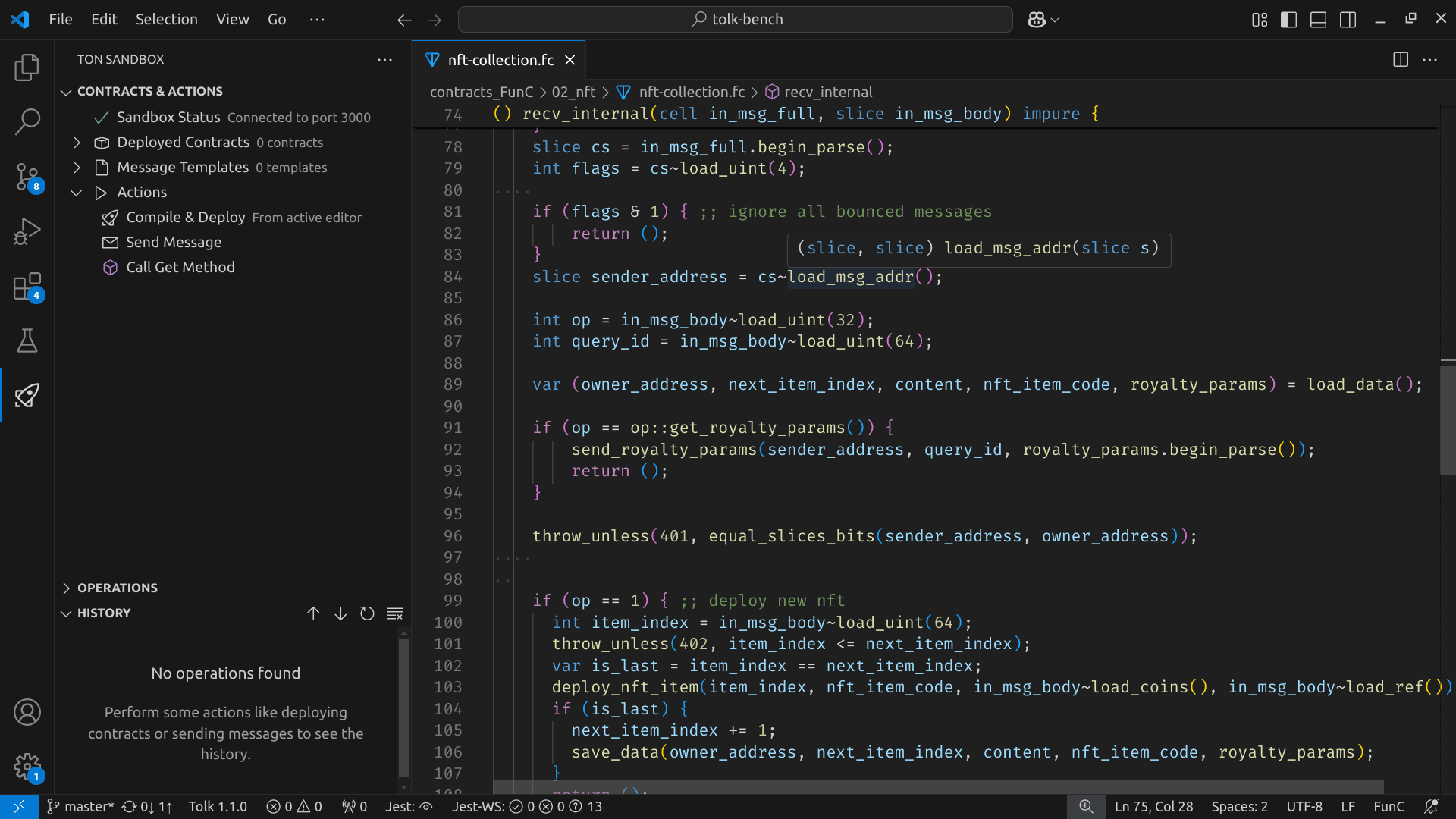
FunC support includes:
- Semantic syntax highlighting
- Code completion, imports completion
- Go to definition
- Find all references, workspace symbol search, symbol renaming
- Automatic import updates when renaming and moving files
- Types and documentation on hover
- Inlay hints for method IDs
- On-the-fly inspections
- Build, test, and debug Acton-based projects
Fift
File extensions: .fif, .fift
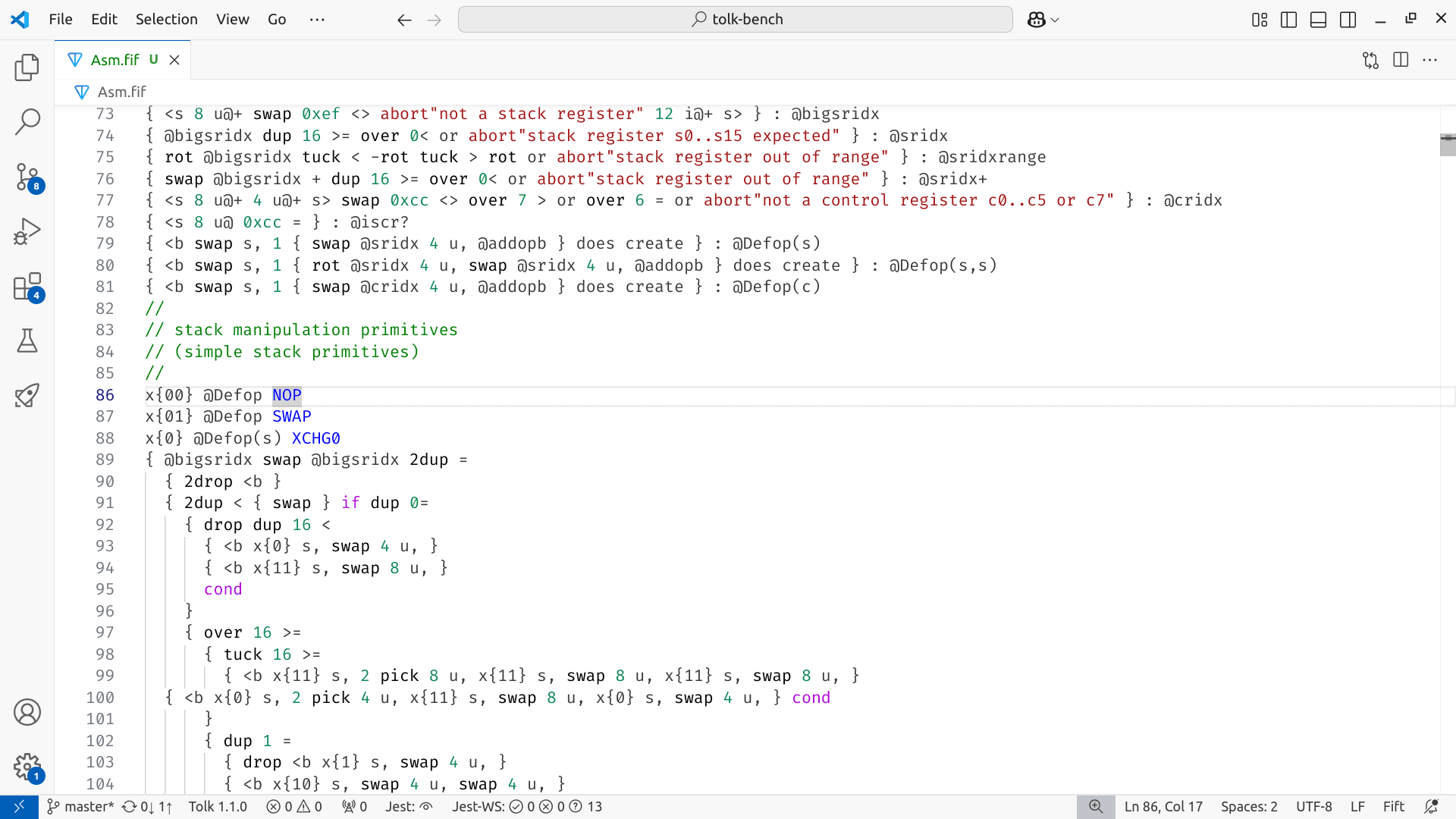
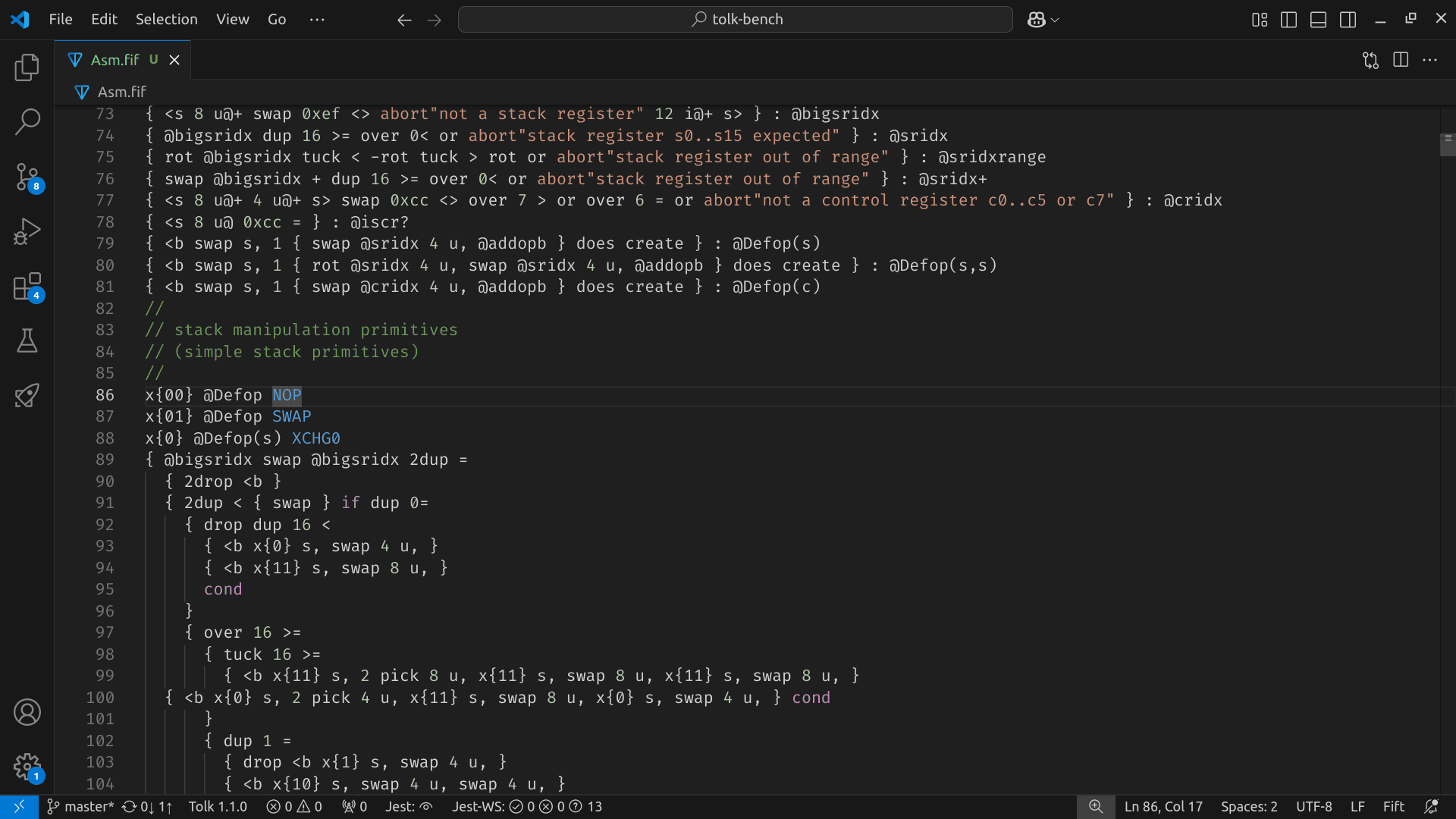
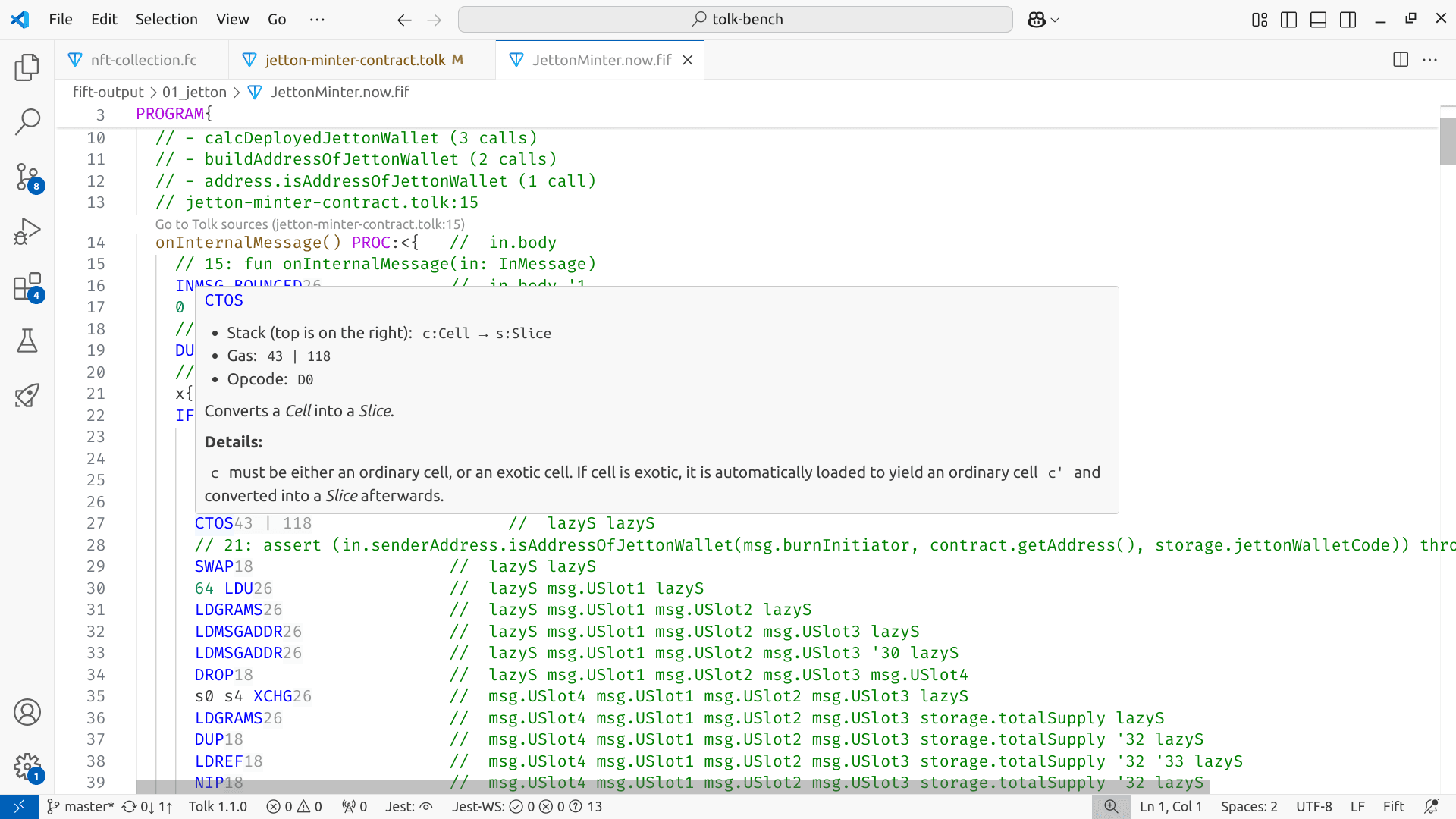
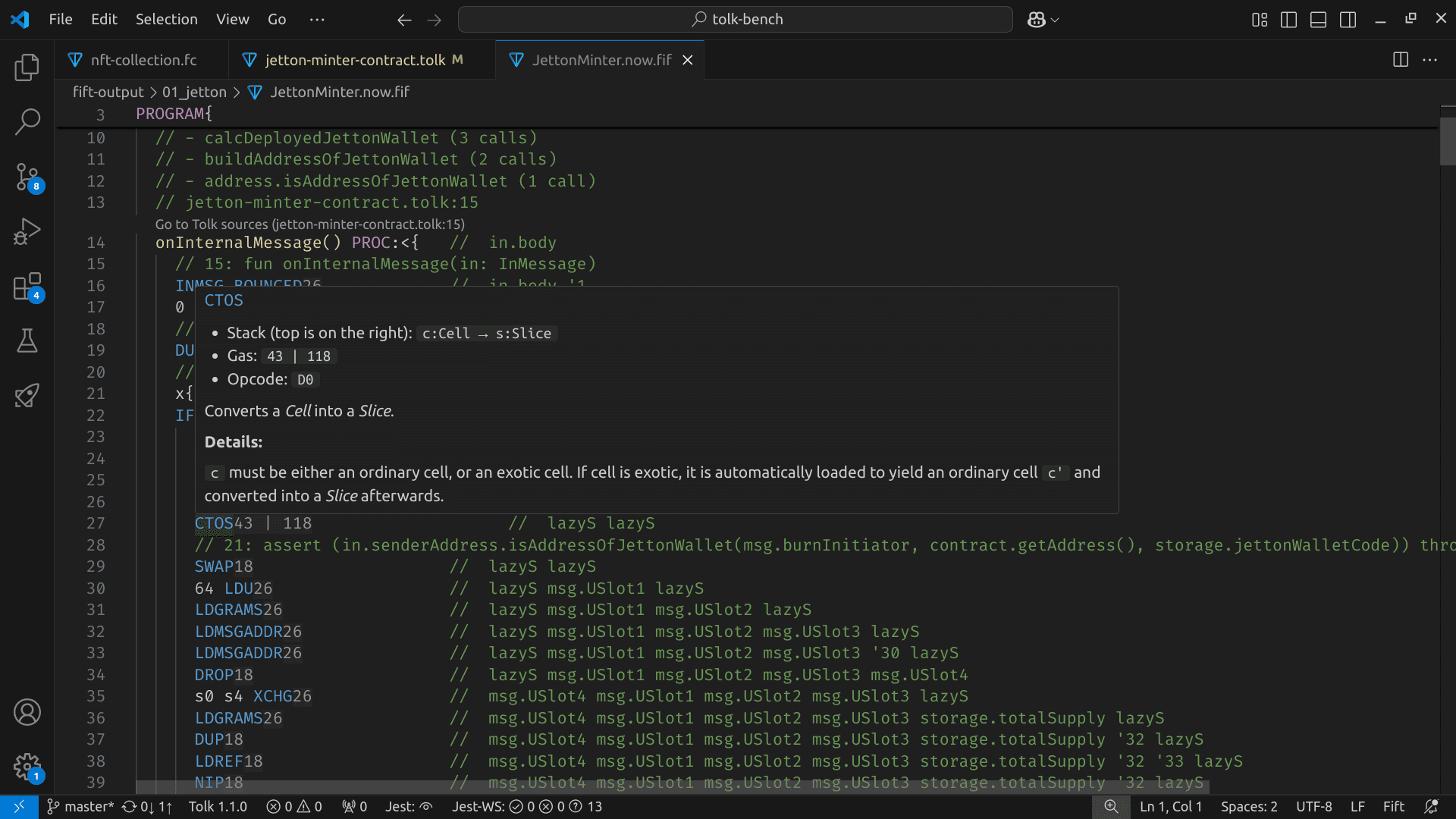
Fift support includes:
- Basic and semantic syntax highlighting
- Go-to definition
- Inlay hints with instruction gas consumption
- Hover documentation for instructions
TL-B
File extension: .tlb
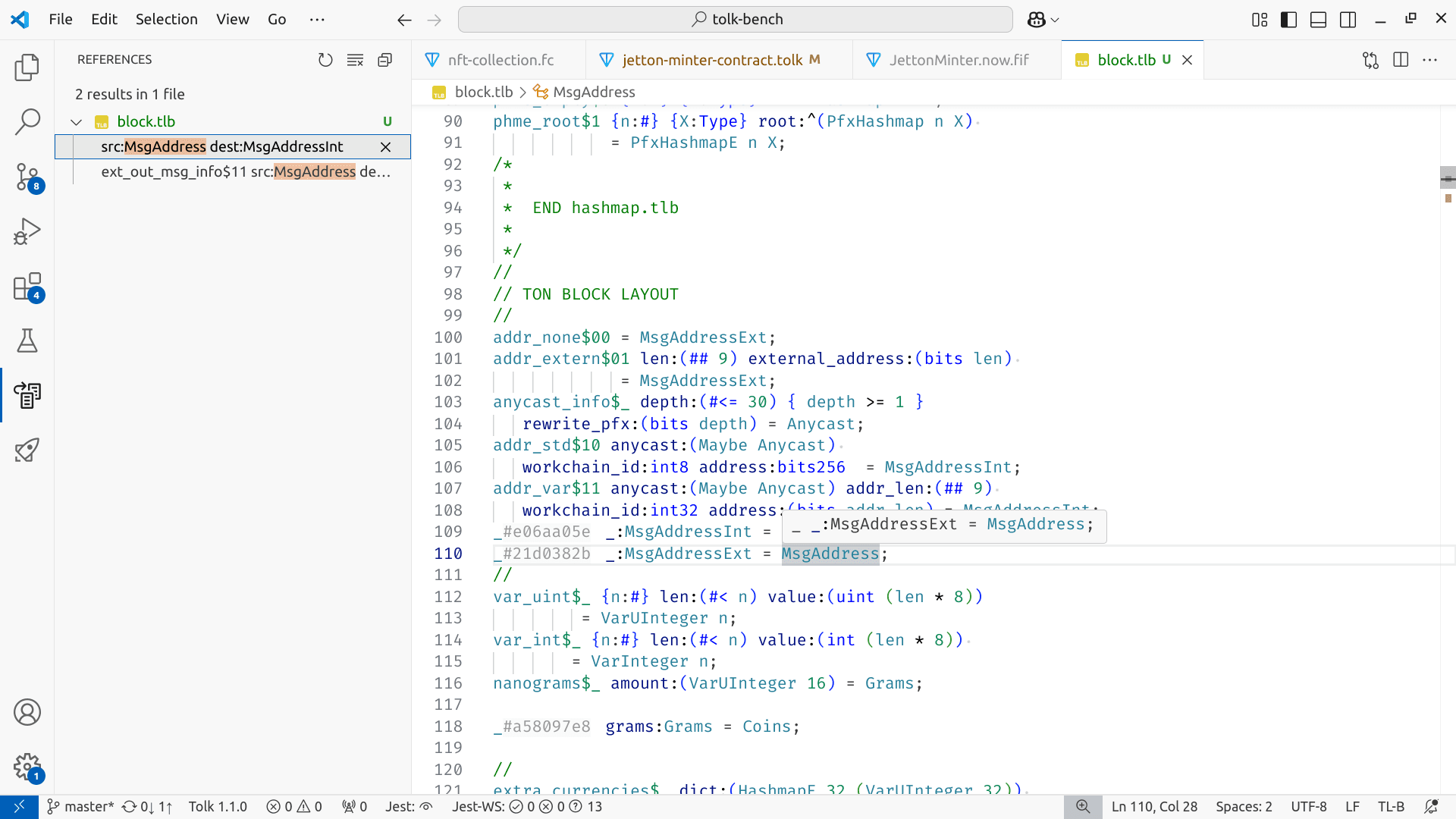
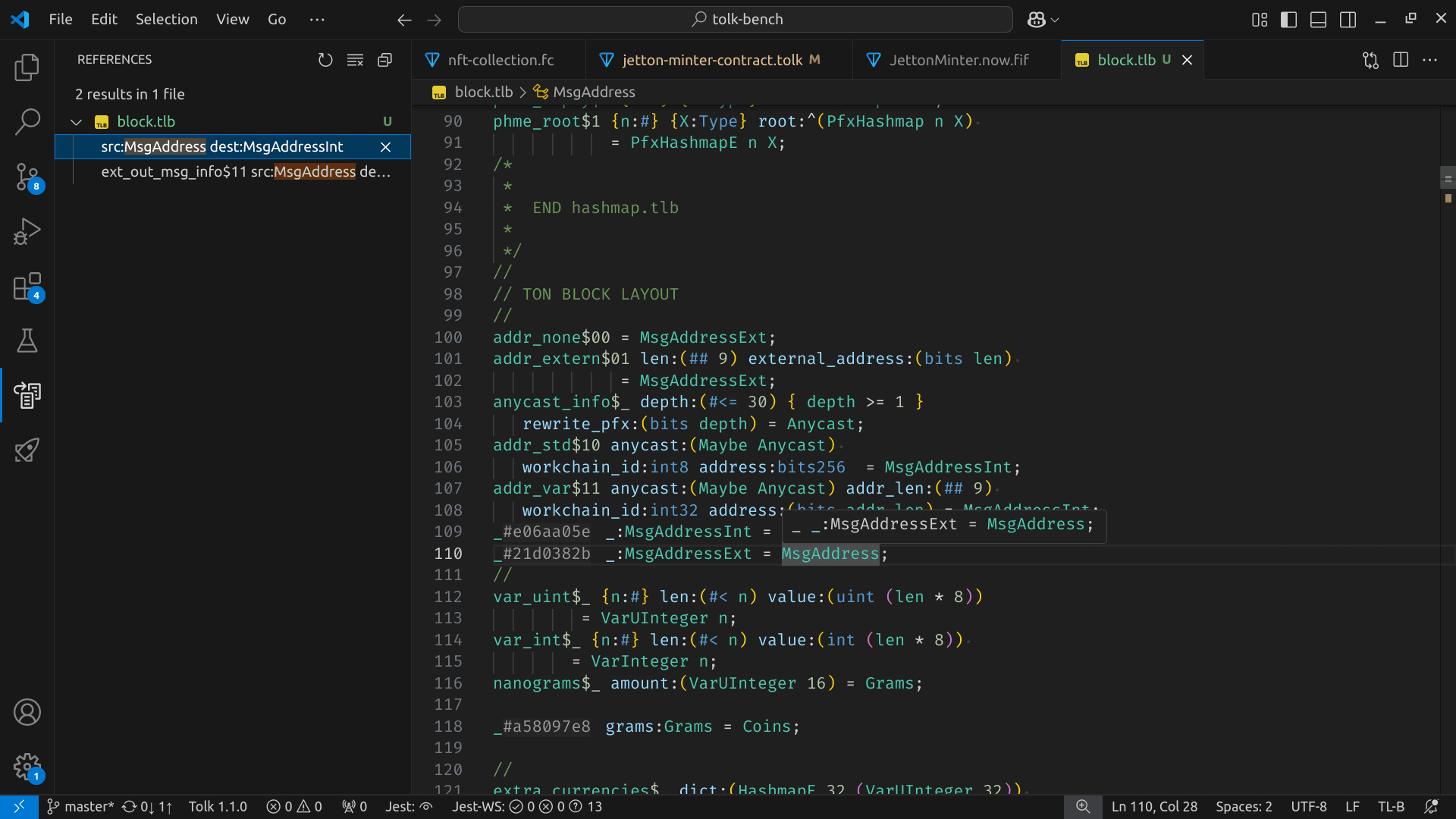
TL-B support includes:
- Basic and semantic syntax highlighting
- Go-to definition
- Completion for fields, parameters, and types
- Go-to references for types
- Hover documentation for declarations
TASM
File extensions:
.tasm— textual bitcode assembly.boc— serialized binary smart contract code
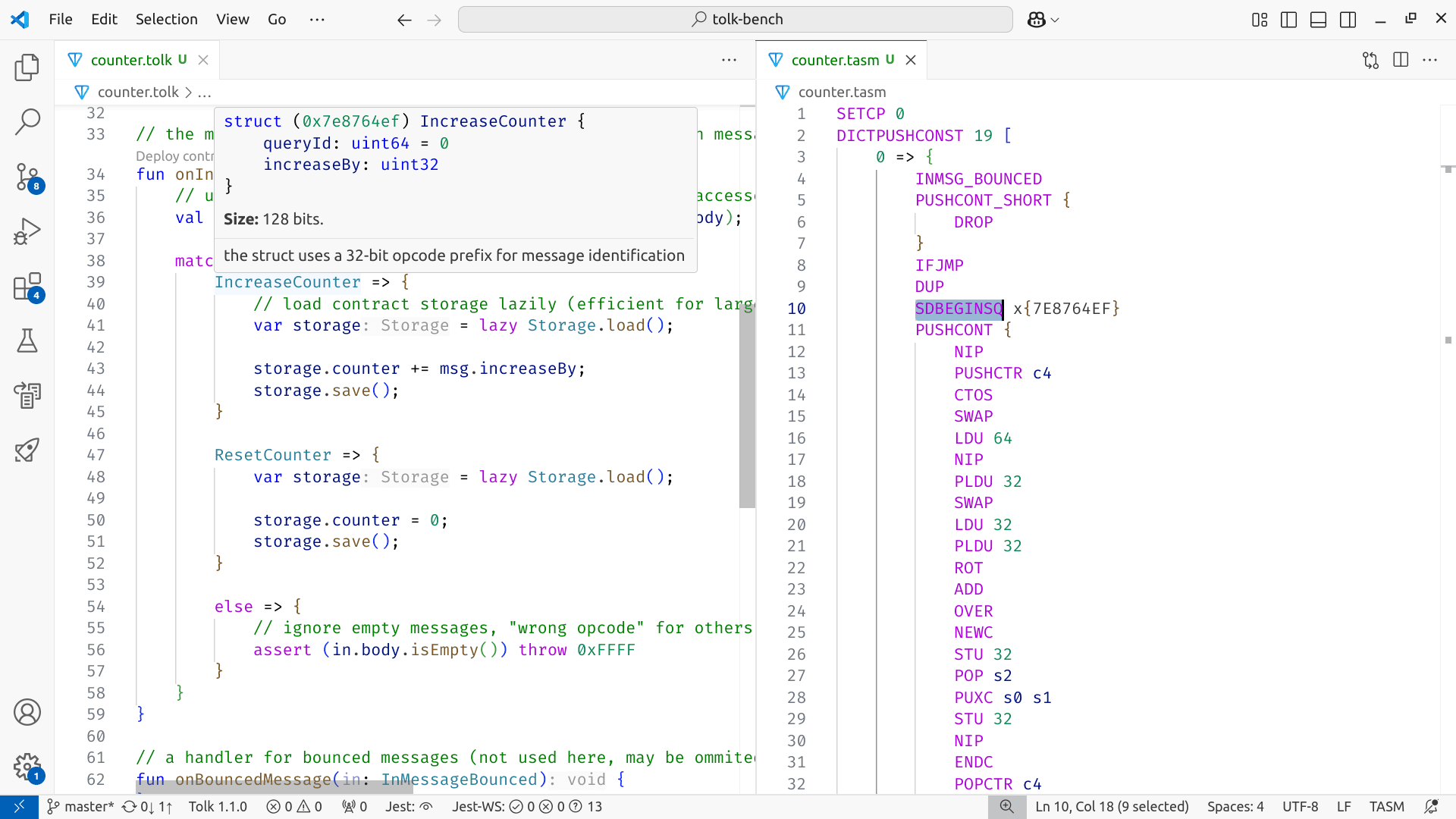
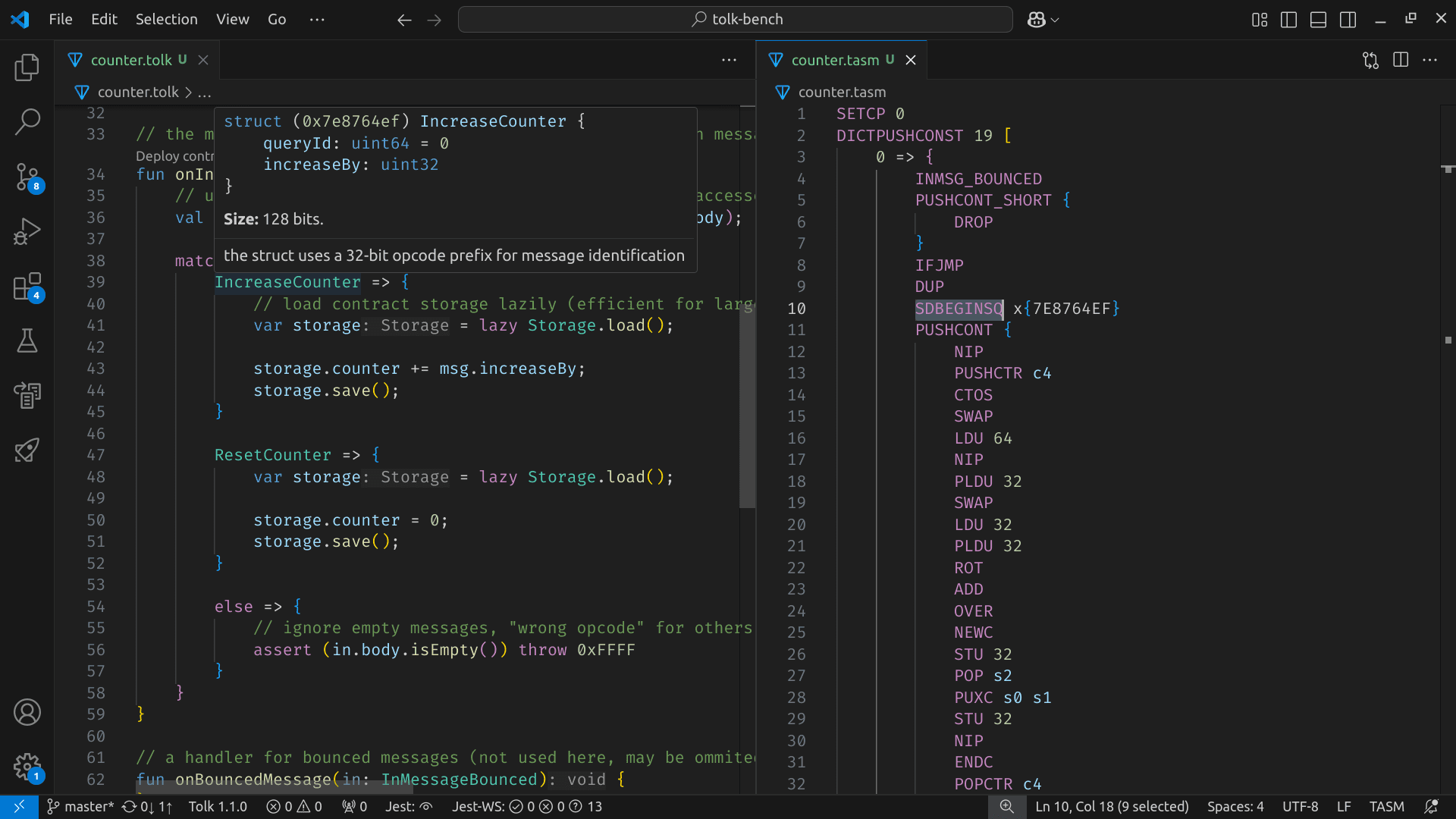
TON Assembly (TASM) support includes:
- Basic syntax highlighting
- Go-to definition
- Inlay hints with instruction gas consumption
- Hover documentation for instructions
- Code completion for instructions
Additionally, BoC support includes:
- Automatic BoC disassembly with syntax highlighting
- Automatic updates on changes in BoC
Integrations
The extension integrates with Acton — a recommended modern all-in-one Tolk smart contract development environment.
Older integrations
Plugin versions v0.6.0 and below also offer support for:
- Blueprint — comprehensive TypeScript development environment for TON smart contract development
- Sandbox — Local TON emulator used to test smart contracts
Since version v1.0.0, Acton is used as the primary TON development toolchain.
Sandbox
There is a graphical interface for local TON Blockchain emulation testing. By using it in Blueprint-based projects or any projects that use Sandbox (@ton/sandbox) for contract emulation, one can:
- Deploy contracts directly from source code
- Send internal and external messages
- Execute get-methods
- Inspect all transactions and messages
- Inspect storage and balances in real time
- Rollback to previous states and export or import various scenarios
It is suited for prototyping, interactive debugging, and educational purposes. To start, open the "TON Sandbox" panel in the primary sidebar after installing the extension, then follow instructions on top.
The Sandbox wiki page provides more detail.
Usage
- Customize the default config by setting various options
- Utilize commands from the Command Palette
Configuration options
This extension provides a wide range of options configurable in the settings editor.
General
ton.tolk.stdlib.pathstring
Path to Tolk standard library. If empty, will try to find in node_modules.
Toolchain
ton.tolk.toolchain.toolchainsobject
Configured Tolk toolchains. Each key serves as a unique identifier for the toolchain, which is an object with the following properties:
"name"(required) — Display name for the toolchain"path"(required) — Path to the Tolk compiler executable"description"— Optional description for the toolchain
Default configuration:
"ton.tolk.toolchain.toolchains": {
  "auto": {
    "name": "Auto-detected",
    "path": "",
    "description": "Automatically detect Tolk compiler in node_modules"
  }
}ton.tolk.toolchain.activeToolchainstring
Name of the active Tolk toolchain to use. The "auto" is a default toolchain that is automatically detected in node_modules/.
ton.tolk.toolchain.showShortCommitInStatusBarboolean
Whether to add a short commit hash after Tolk version in the status bar.
Editor → Hints
ton.tolk.hints.disableboolean
Tolk: Disable all inlay hints.
ton.tolk.hints.typesboolean
Tolk: Show type hints for variables and expressions.
ton.tolk.hints.parametersboolean
Tolk: Show parameter name hints in function calls.
ton.tolk.hints.showMethodIdboolean
Tolk: Show method ID hints for get methods.
ton.tolk.hints.constantValuesboolean
Tolk: Show computed values for constants.
ton.func.hints.disableboolean
FunC: Disable all inlay hints.
ton.func.hints.showMethodIdboolean
FunC: Show method ID hints for functions with method_id.
ton.func.hints.implicitConstantTypeboolean
FunC: Show type hints for constants without explicit type.
Editor → Completion
ton.tolk.completion.typeAwareboolean
Tolk: Sort completion items by relevance to the current context type.
ton.tolk.completion.addImportsboolean
Tolk: Automatically add necessary imports for symbols from other files.
Editor → Inspections
ton.tolk.inspections.disabledstring[]
Tolk: List of disabled code inspections. All available inspections are enabled by default:
"unused-parameter""unused-type-parameter""unused-variable""unused-top-level-declaration""unused-import""deprecated-symbol-usage""struct-initialization""cannot-reassign""need-not-null-unwrapping""missed-semicolon""call-arguments-count-mismatch"
ton.func.inspections.disabledstring[]
FunC: List of disabled code inspections. All available inspections are enabled by default:
"unused-parameter""unused-type-parameter""unused-variable""unused-import"
Editor → Find Usages
ton.tolk.findUsages.scopestring
Tolk: Where to search when using "Find Usages". Allowed values:
"workspace"(default) — Search only in workspace files"everywhere"— Search everywhere, including the standard library
Fift
ton.fift.hints.showGasConsumptionboolean
Show gas consumption hints for Fift instructions.
ton.fift.semanticHighlighting.enabledboolean
Enable/disable semantic highlighting for Fift files.
BoC
ton.boc.openDecompiledOnOpenboolean
Automatically open decompiled Fift assembly when opening BoC files (with .boc extension).
Formatter
ton.tolk.formatter.useFormatterboolean
Use experimental Tolk formatter.
ton.tolk.formatter.sortImportsboolean
Sort imports on format.
Sandbox
ton.sandbox.portnumber
Port of the TON Sandbox server.
ton.sandbox.binaryPathstring
Path to the TON Sandbox server binary.
Command Palette
The Ctrl+Shift+P on Windows and Linux (and ⌘+⇧+P on macOS) brings up the Command Palette. This plugin provides a number of custom commands available for launch from the palette.
General
TON: Open decompiled BoC fileTON: Decompile BoC to TON Assembly fileTON: Debug contract
Tolk
Tolk: Build projectTolk: Get type at positionTolk: Get contract ABITolk: Get documentation at positionTolk: Get scope informationTolk: Get unresolved identifiersTolk: Show toolchain informationTolk: Select active toolchain— modifies the configTolk: Add new toolchain— modifies the configTolk: Remove toolchain— modifies the configTolk: Manage toolchains— modifies the config
Sandbox
Work everywhere:
TON: Install TON Sandbox Server— modifies the configTON: Start TON Sandbox ServerTON: Stop TON Sandbox ServerTON: Open Sandbox Terminal
Only work in the Sandbox panel:
TON: RefreshTON: Refresh historyTON: Import historyTON: Export historyTON: Reset historyTON: Delete message templateTON: Copy contract ABITON: Copy address