
Run a validator
Run a validator node with MyTonCtrl
Overview
This guide explains how to run a validator TON node with MyTonCtrl from scratch.
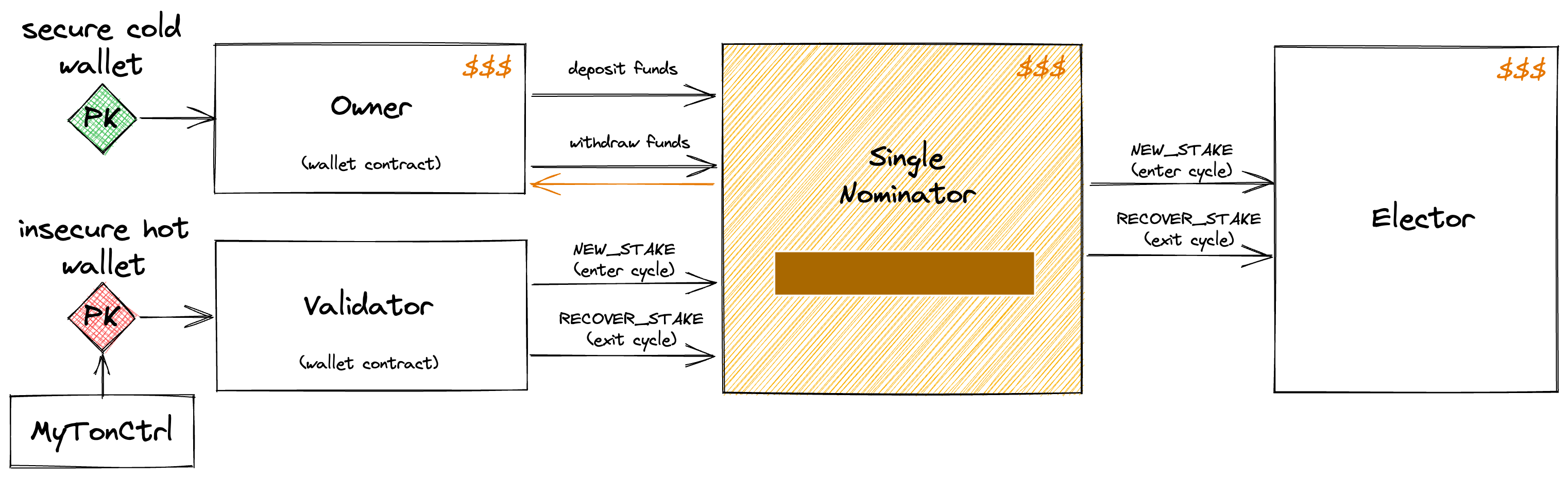
Step 1: Prepare environment
1.1 Maintain costs and expenses
- 200 TON per month on the validator hot wallet for its operational transactions.
- Validator deposit stake 700 000 TON ~ 4 000 000 TON.
- 100 TB/month traffic at a peak load.
1.2 Minimal hardware requirements
- 16-core CPU (for example, Intel Xeon E-2388G or equivalent)
- 128 GB RAM
- 2 × 1.92 TB NVMe SSD, each with 250,000+ read IOPS and 83,000+ write IOPS
- 1 Gbit/s network connectivity
- Fixed (static) public IP address
A 1 Gbit/s network connection is recommended to ensure reliable performance during peak load conditions. The average expected bandwidth usage is approximately 100 Mbit/s.
Validators must carefully consider IOPS disk requirements, as insufficient storage performance can severely impact validator stability and overall network health. Prefer faster NVMe drives — validator performance depends heavily on disk speed.
1.3 Software requirements
- Ubuntu 22.04 LTS or 24.04 LTS
- Python 3.10 or higher
- Clang 16.0.0 or higher
# Check Ubuntu version
cat /etc/os-release
# Check Python version
python3 --version# Check Clang version
clang --version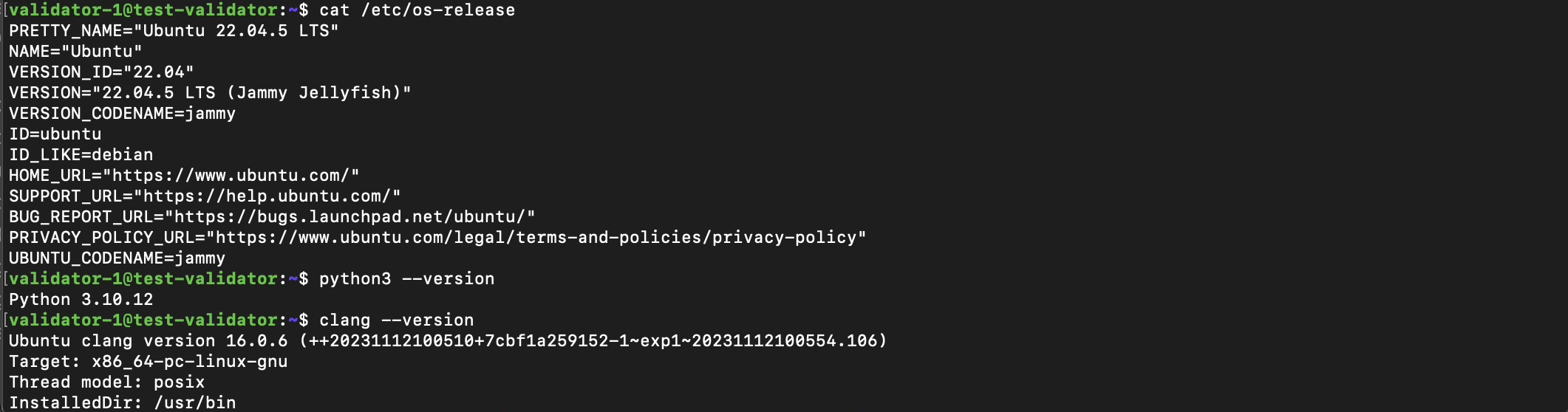
1.4 Port forwarding for validator
Configure the network on the server according to the following:
- All outgoing connections are allowed.
- A static external IP address.
- One UDP port open for incoming connections.
1.5 Follow network announcements
Subscribe and follow the instructions provided for validators with Telegram channels.
Do not ignore announcements for TON Testnet; validators that violate the maintenance rules are fined and excluded from the network.
| Channel | Network |
|---|---|
| @tonstatus | TON Mainnet |
| @testnetstatus | TON Testnet |
1.6 Prepare validator user
Prepare and log in a user for the validator.
-
Create a non-root user
# Create a non-root validator user sudo adduser <USERNAME> sudo usermod -aG sudo <USERNAME> -
Switch to it by reconnecting to the server via
ssh#reconnect as the new user exit ssh <USERNAME>@<SERVER_IP>
1.7 Benchmark server performance
Before installing, verify that the server meets performance requirements. Inadequate disk or network performance is the most common cause of validator instability.
Network latency
Check latency to TON beacon nodes. Expect approximately 50 milliseconds to the nearest beacon and up to 300 milliseconds to the farthest:
ping beacon-eu-01.toncenter.com -c 6
ping beacon-apac-01.toncenter.com -c 6
Disk IOPS
Install fio and run a random read/write benchmark:
sudo apt install -y fio
fio --randrepeat=1 --ioengine=libaio --max-jobs=16 --direct=1 --gtod_reduce=1 --name=test --bs=4k --iodepth=64 --readwrite=randrw --rwmixread=75 --size=10G --filename=/tmp/bench
rm /tmp/bench
Run the benchmark on the same disk where validator data will be stored (/var/ton-work/). If /tmp is on a different filesystem, replace /tmp/bench with a path on the target drive.
Minimum acceptable results:
| Metric | Minimum |
|---|---|
| Read | 250k IOPS, 981 MB/s |
| Write | 83k IOPS, 327 MB/s |
If disk performance is below these thresholds, the validator may fail to keep up with the network. Upgrade storage before proceeding.
Network bandwidth
Verify network throughput with speedtest-cli:
sudo apt install -y speedtest-cli
speedtest-cli
Ensure download and upload speeds meet the 1 Gbit/s requirement.
1.8 Harden server security
Security baseline
A compromised validator server puts staked funds at risk. Apply these hardening steps before exposing the server to the network.
SSH hardening
Apply the following SSH configuration changes in /etc/ssh/sshd_config:
- Enable key-based authentication and disable password login:
PasswordAuthentication no
PubkeyAuthentication yes- Disable root login:
PermitRootLogin no- Change the default SSH port:
Port <SSH_PORT><SSH_PORT> — a non-default port number (for example, 2222).
- Restrict SSH access to specific IP addresses using the
Match Addressdirective:
Match Address <ALLOWED_IP>
  AllowUsers <USERNAME>
Restart the SSH service after changes:
sudo systemctl restart sshdFirewall configuration
Enable the firewall and allow only the SSH port. The validator UDP port is added after installation in step 2.5.
sudo ufw allow <SSH_PORT>/tcp
sudo ufw enable
sudo ufw status
Additional security measures
-
Use a unique, strong password for the root user.
-
Set a GRUB bootloader password to prevent unauthorized boot modifications.
-
Enable Fail2ban for SSH brute-force protection:
sudo apt install -y fail2ban sudo systemctl enable fail2ban sudo systemctl start fail2ban -
Configure two-factor authentication for SSH using
libpam-google-authenticatoror a similar PAM module.
Encrypt sensitive directories (optional)
For additional protection, store validator keys and configuration on an encrypted partition. Create an encrypted volume and symlink the backup directories from it.
After moving directories to the encrypted partition, create symlinks in their original locations so that MyTonCtrl and the validator service continue to function without path changes.
Step 2: Validator node installation
2.1 Download validator installer (MyTonCtrl)
Run:
wget https://raw.githubusercontent.com/ton-blockchain/mytonctrl/master/scripts/install.sh
2.2 Run validator installation
Run the validator installation. Installation takes approximately 20 minutes:
sudo bash install.sh -m single-nominator -n mainnetsudo bash install.sh -m single-nominator -n testnet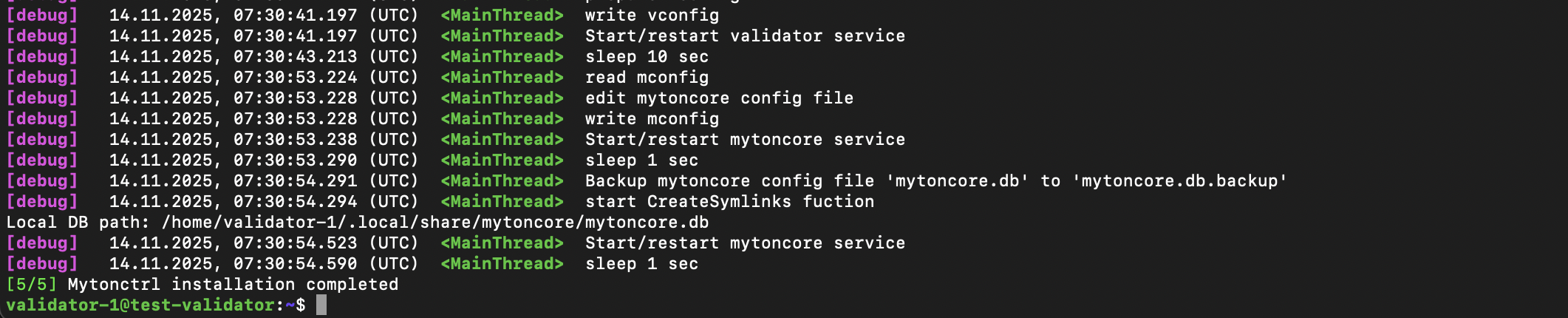
2.3 Verify status results
Launch MyTonCtrl with the command mytonctrl. Then, check synchronization using the status command:
mytonctrl
MyTonCtrl> status
Verify that the correct modes are enabled:
MyTonCtrl> status_modesExpected output should show validator and single-nominator as enabled, with all other modes disabled.
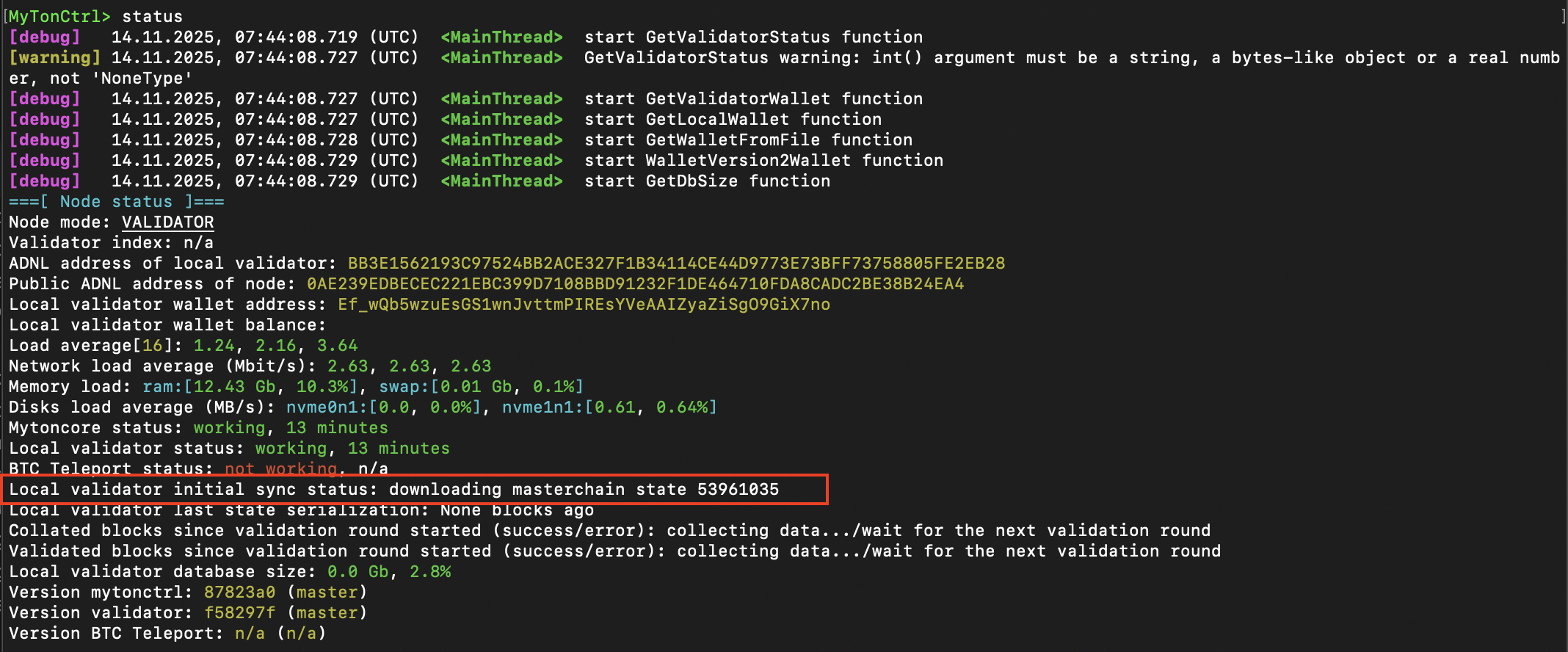
Initially, the status shows "Local validator initial sync status: downloading blockchain state x", which indicates that the node has started synchronization. There are also other status messages in the very beginning of the synchronization, such as "starting", "init block seqno", "last key block is x", "downloading all shard states", "mc seqno" - all these statuses are fine.
2.4 Verify validator's port
Print engine.addr port configuration config.json file:
grep -A5 '"addrs"' -n /var/ton-work/db/config.json | grep '"port"' | head -1
2.5 Check validator's port
Make sure UDP engine.addr port is allowed with the following command:
sudo ufw status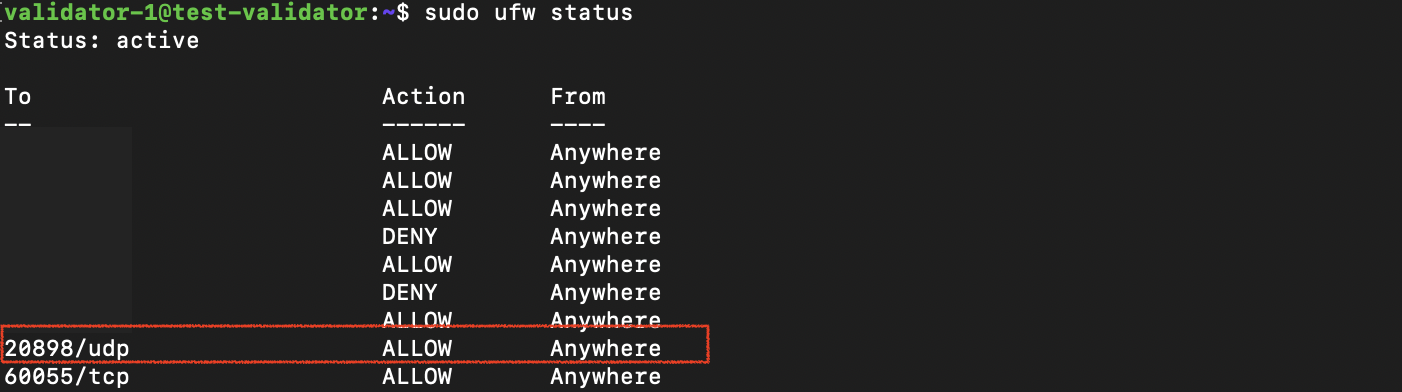
If the port is filtered (absent in allowed), open this port:
sudo ufw allow <PORT_NUMBER>/udpThen make sure with sudo ufw status.
2.6 Verify node synchronization
Wait until the node is fully synchronized, which takes approximately 3 hours (depending on the network connection). Check the field Local validator initial sync status: x, the value x should become less than 20.
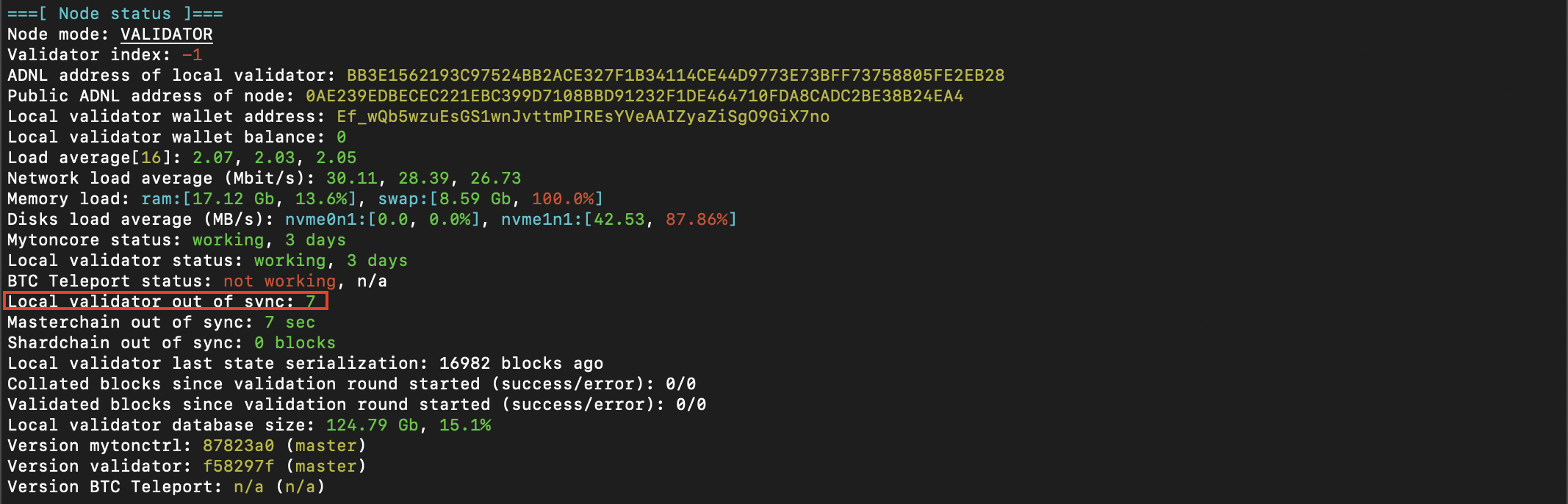
Set up alert bot to receive a notification when the node is synchronized.
Step 3: Configure validator
When installing, MyTonCtrl automatically creates a validator wallet. Top up and activate (deploy) this wallet so MyTonCtrl can operate the single nominator pool smart contract with it.
3.1 Get validator wallet address
MyTonCtrl> wlFind the wallet named validator_wallet_001 and its address.

3.2 Back-up validator wallet secret key
This private key is required to restore access to the funds stored in the validator wallet. It is not involved in managing rewards or staking.
Make a backup of the validator wallet secret key:
MyTonCtrl> ew validator_wallet_001
Import this secret key with iw command.
3.3 Explore validator wallet
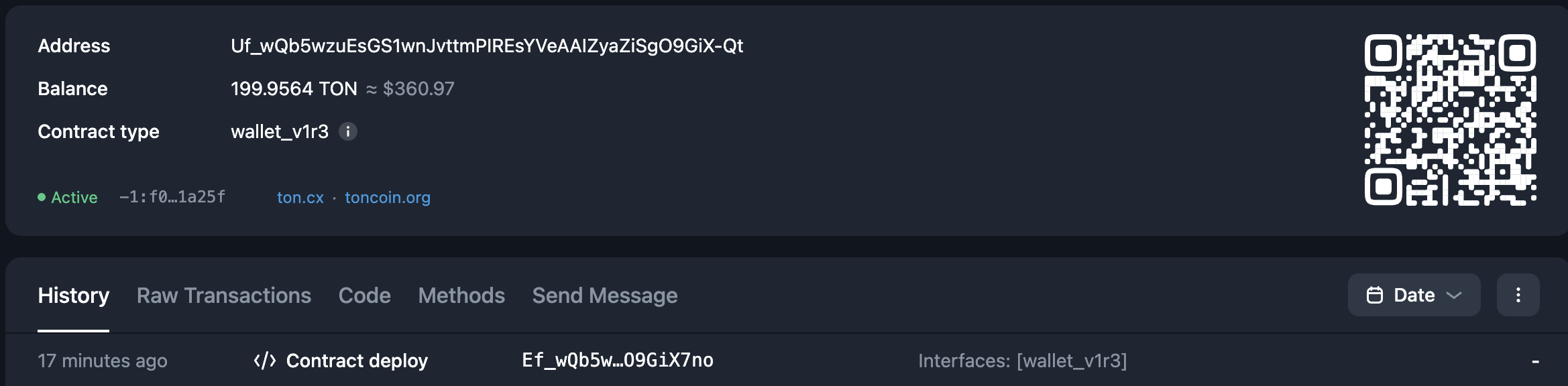
Explore validator wallet by address with Tonviewer:
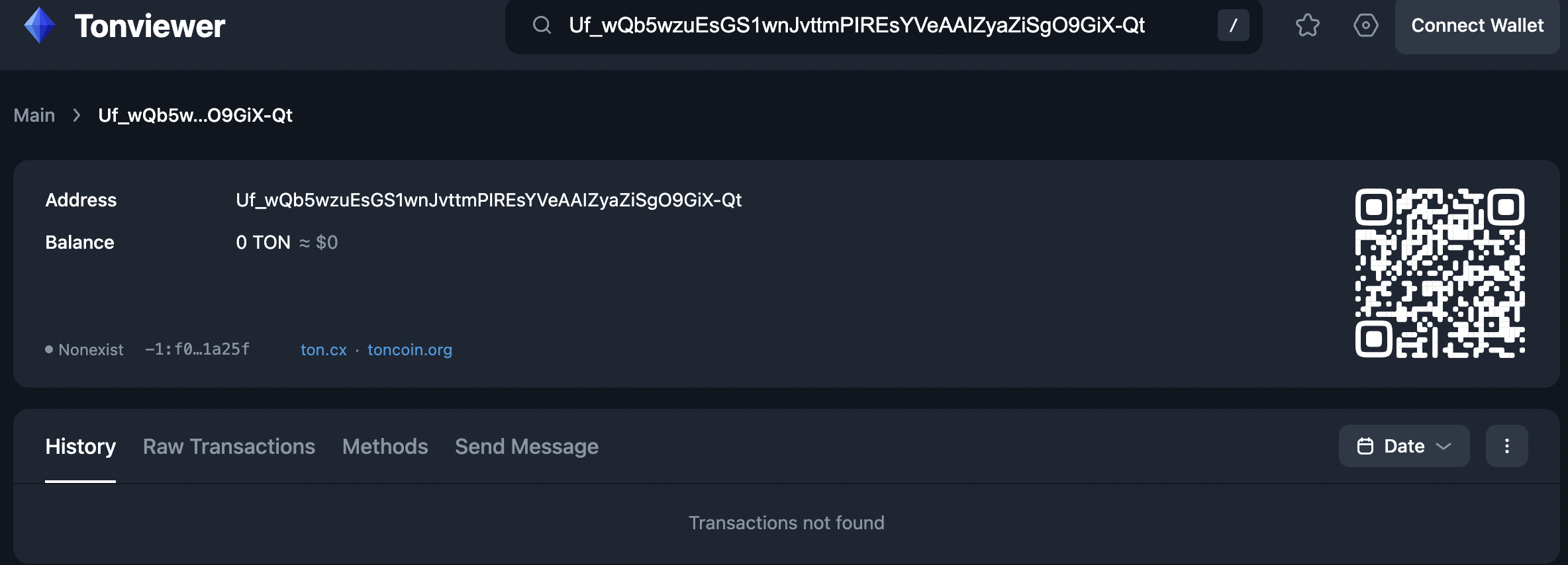
3.4 Credit validator wallet
Funds at risk
Ensure precise handling of operations, carefully verifying the addresses for single_nominator_pool, owner_address, and validator_wallet. Any incorrect deposit processing may result in the permanent and unrecoverable loss of funds.
Credit the validator wallet. Ensure that at least 200 TON per month is available in the validator’s wallet to cover operational fees.
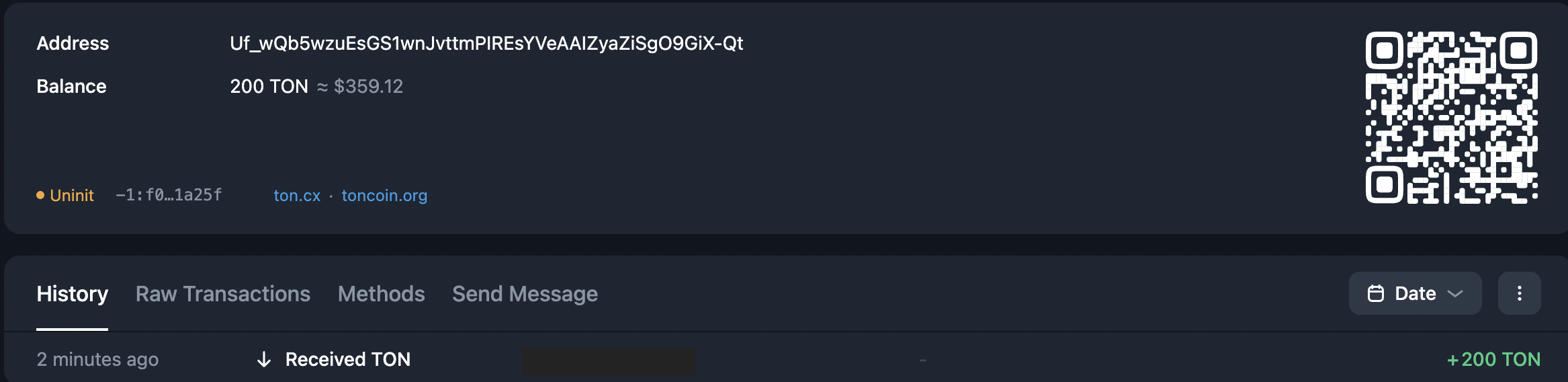
3.5 Activate the wallet
Activate (deploy on-chain) validator wallet, run:
MyTonCtrl> aw validator_wallet_001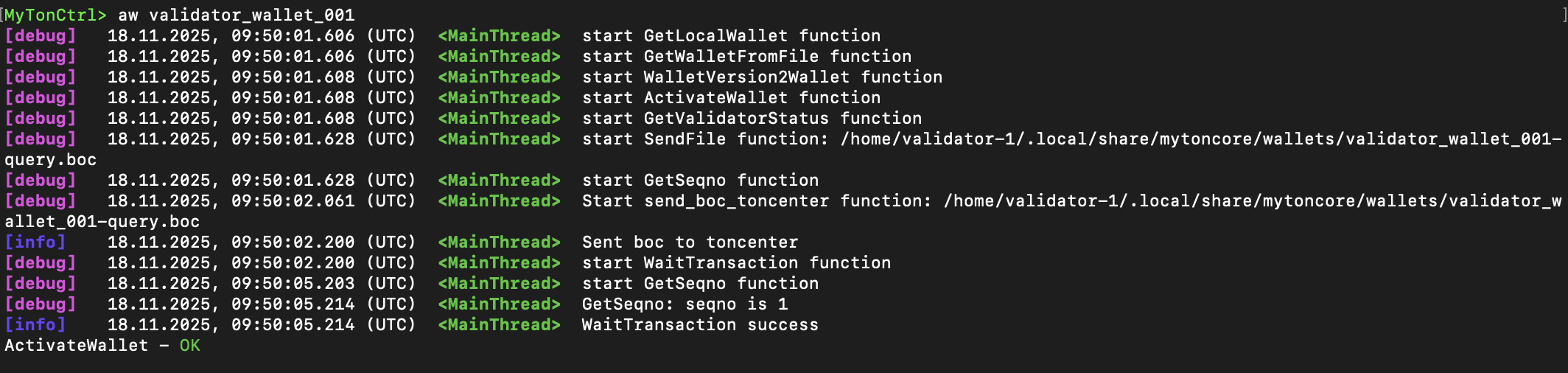
That also reflects in Tonviewer; the status will be displayed as Active
3.6 Create a pool
Create a single nominator pool for secure stake management. As the owner-address, specify the beneficiary wallet address that will stake the owner's funds and receive rewards.
Funds at risk
Use a cold wallet (e.g., Ledger) for the owner-address and store its seed phrase securely to keep funds safe. If access to the owner's wallet is lost, access to stake and rewards funds cannot be recovered.
MyTonCtrl> new_single_pool <pool-name> <owner-address>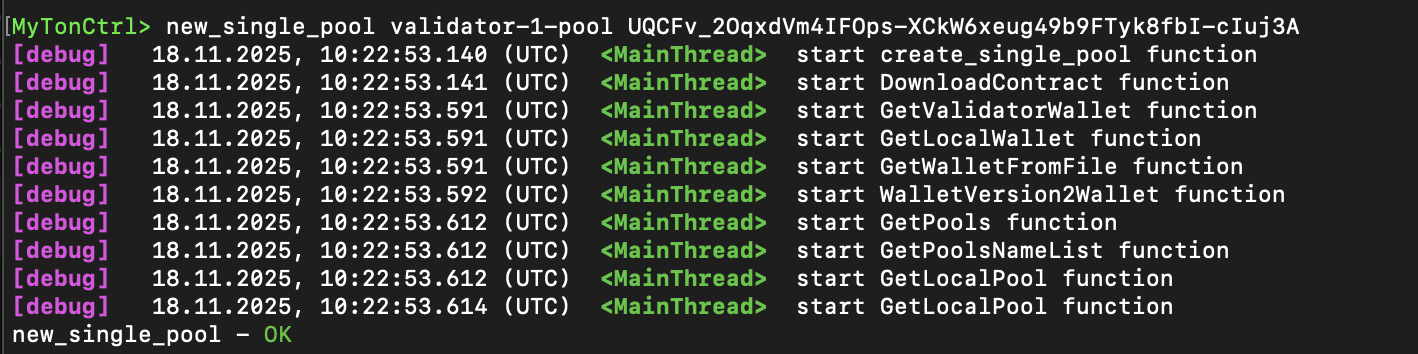
3.7 Print pool list
Explore pool addresses using pools_list command:
MyTonCtrl> pools_list
At the moment, the pool hasn't been deployed yet, and Explorer will display this as Nonexist status

3.8 Activate pool
Activate the single pool nominator contract:
MyTonCtrl> activate_single_pool <pool-name>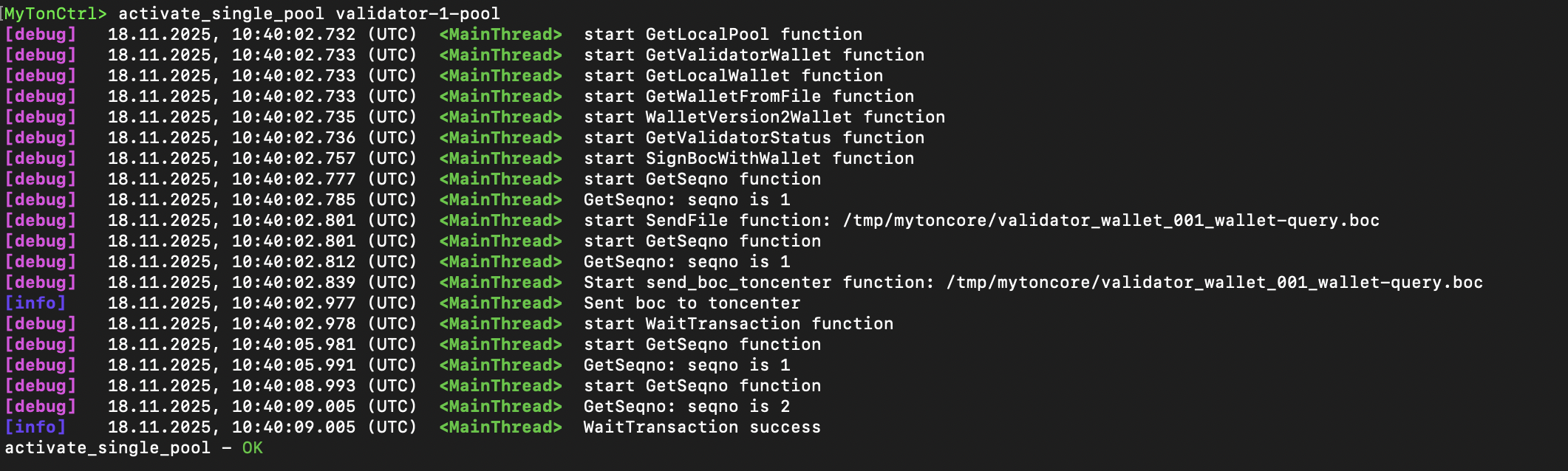
3.9 Verify activated pool
Make sure the pool becomes activated with pools_list:
MyTonCtrl> pools_list
Blockchain explorer should also display the now-deployed contract with Active status.
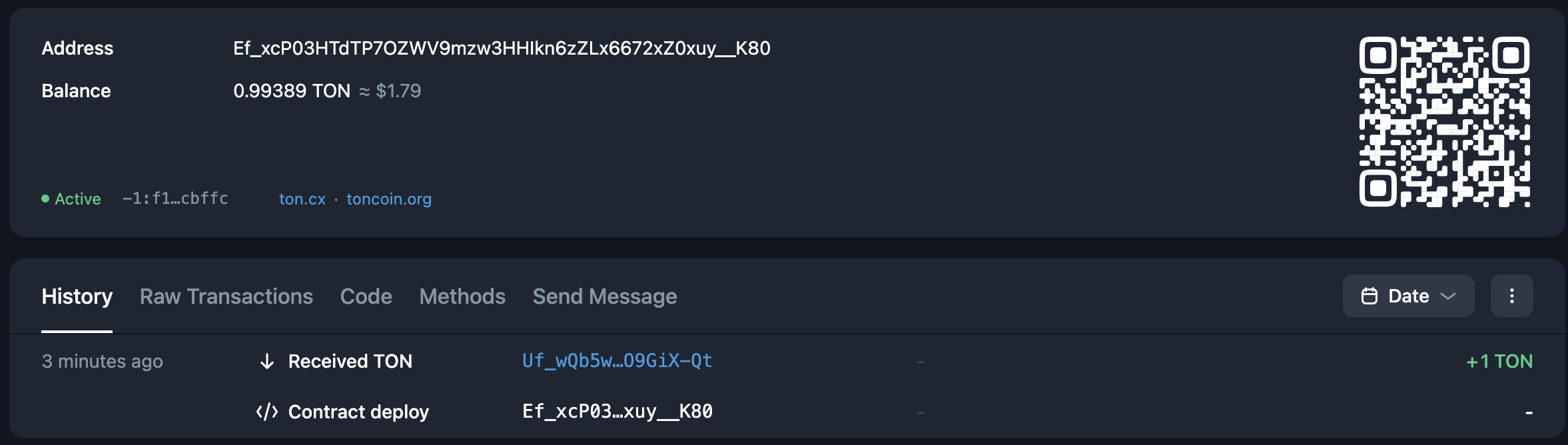
After activation, verify the following in a blockchain explorer:
- The pool contract code hash matches the official single nominator pool contract.
- The owner address stored in the pool matches the address specified during creation.
Skipping these checks may result in funds being sent to an incorrect or malicious contract.
3.10 Test deposit to pool
Funds at risk
Ensure precise handling of operations, carefully verifying the addresses for single_nominator_pool, owner_address, and validator_wallet. Any incorrect deposit processing may result in the permanent and unrecoverable loss of funds.
Test deposit to stake workflow. Any user can deposit to the pool via a standard direct TON transfer. Credit decent sum around 10 TON:


3.11 Test withdrawal from pool
Test withdrawal workflow. Only the owner's cold wallet can request a withdrawal.
Send a withdrawal request, a message with w comment from owner wallet to the single nominator pool address:
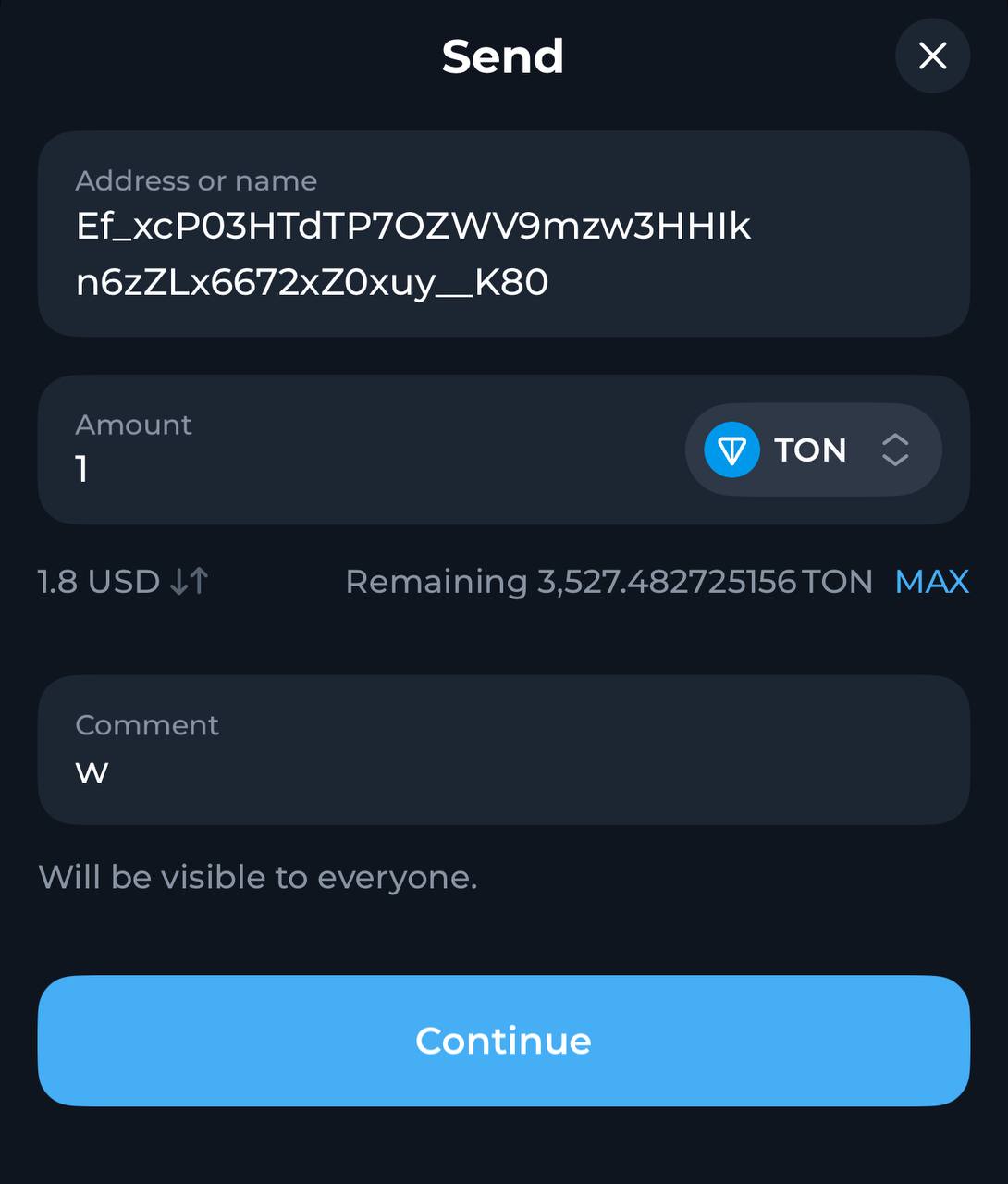
Once the deposit is restored (except 1 TON reserve on the single nominator pool) to the owner's wallet, that means validator are set securely and ready for real stake:

Step 4: Set optimal stake for validator
Top up the single nominator pool with the effective validation stake. In the next elections, MyTonCtrl will automatically use this pool for staking. Aim for a stake that places the validator between positions 200 and 250 in the validator index.
If the pool's balance is sufficient to participate in both rounds balance > min_stake_amount * 2, MyTonCtrl will automatically participate in both rounds using stake = balance / 2, unless the stake is manually set using the set stake command. This behavior differs from using a nominator pool but resembles staking with a validator wallet.
4.1 Retrieve stakes for last two cycles
Check the current validator stakes on tonscan.org/validators and the minimum network stake in the network config.
Retrieve min_stake and max_stake from Validation API for two last cycles.
For example:
"cycle_id" : 1764052744,
"min_stake": 701812111528562,  // ~ 701 812 TON
"max_stake": 2008570202020000, // ~ 2 008 570 TON
"cycle_id" : 1764052744,
"min_stake": 674810775114391, // ~ 674 811 TON
"max_stake": 2024432325343173, // ~ 2 024 432 TONValues retrieved in nanotons, divide this by 10^9 to get TON units.
4.2 Retrieve stakes boundary values
To cover the approximate expected stake for odd and even cycles, choose the maximum between the two min_stake and the maximum between the two max_stake.
For example:
// largest within 701 812 TON and 674 811 TON
avg_min_stake = 701812

// largest within 2 008 570 TON and 2 024 432 TON
avg_max_stake = 2024432
4.3 Calculate effective stakes
Effective stands for winning elections for both odd and even cycles.
Effective stake for two cycles is a value between the doubled maximum and the minimum average stakes:
avg_min_stake * 2 <= effective_stake <= avg_max_stake * 2For example:
// twice the average minimum stake
min_expected_effective_stake = 1403624

// twice the average maximum stake
max_expected_effective_stake = 4048864
Then, the effective stake is approximately:
1403624 TON <= effective_stake <= 4048864 TON4.4 Deposit effective stake
Funds at risk
Ensure precise handling of operations, carefully verifying the addresses for single_nominator_pool, owner_address, and validator_wallet.
Any incorrect deposit processing may result in the permanent and unrecoverable loss of funds.
Deposit effective stake to the single nominator pool address.
4.5 Track first cycle progress
In the next election cycle (odd/even), MyTonCtrl will send half of the stake from the single nominator pool. Track this with a blockchain explorer.
4.6 Track second cycle progress
In the next paired election cycle (even/odd), MyTonCtrl will send the second half of the stake from the single nominator pool. Track this with a blockchain explorer.
4.7 Verify entire staking cycle
The reward for the odd validation cycle will be returned to the single nominator pool, combined with the stake. Verify this with a blockchain explorer. A few minutes after the reward is accepted, MyTonCtrl initiates a re-stake of this stake, including the reward.
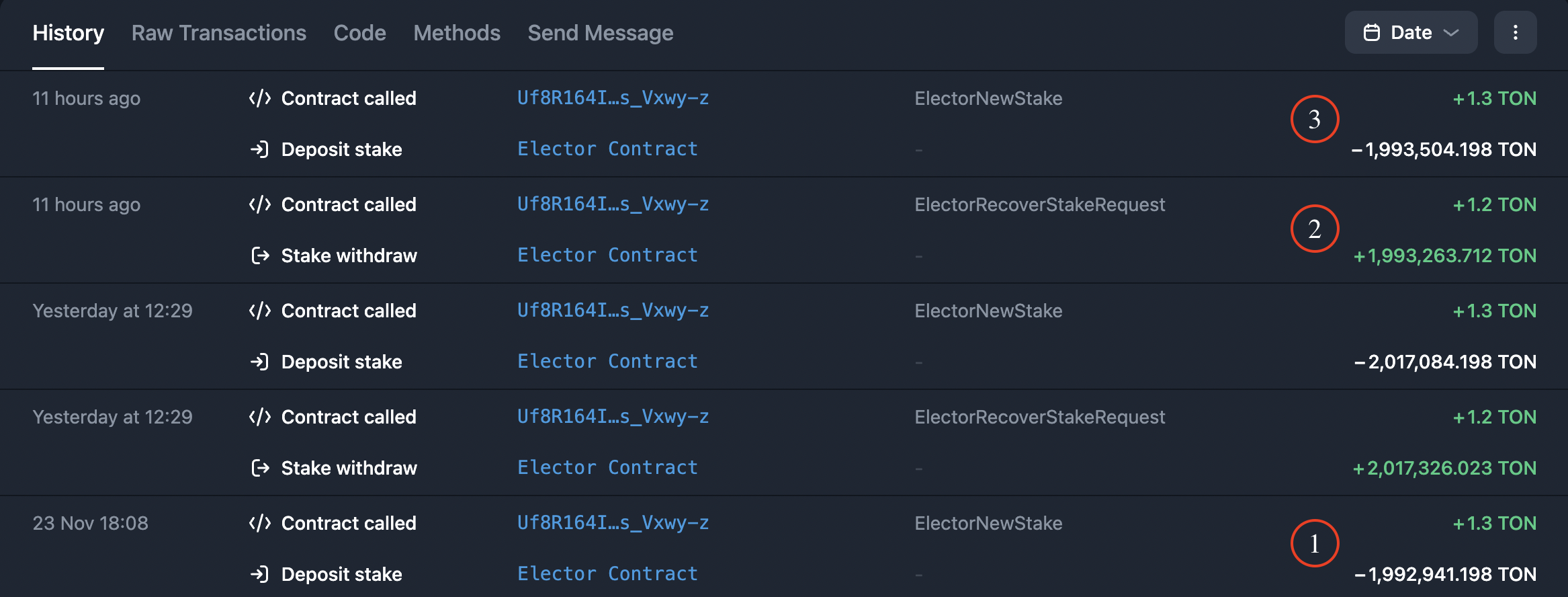
Legend
- Stake for odd cycle.
- Reward for odd cycle.
- Reinvestment of the odd cycle stake, including the reward in the next odd cycle.
4.8 Switch to daily maintenance
Make sure pair stakes are appropriately circulated, then focus on monitoring validator health and updates.
Step 5: Maintain validator
5.1 Fund the validator hot wallet
Keep at least 200 TON on the validator hot wallet. This balance covers operational fees for approximately one month.
To check the current balance:
MyTonCtrl> wl5.2 Top up the single nominator pool
Before sending funds to the pool:
- Verify that the pool address is correct and uses the bounceable format.
- Confirm that the pool smart contract is still active and not frozen. A pool can become frozen if the entire balance is consumed by storage fees between creation and funding.
- Follow the test deposit and withdrawal procedure before depositing the full stake.
By default, MyTonCtrl splits the pool balance 50/50 between odd and even validation cycles. Ensure the total stake is sufficient to participate in both cycles: balance > min_stake * 2.
If the pool does not pick up the deposit automatically, push it manually:
MyTonCtrl> mg validator_wallet_001 <POOL_ADDRESS> 5<POOL_ADDRESS> — the bounceable address of the single nominator pool.
5.3 Withdraw funds from the pool
Only the owner wallet can withdraw funds. Follow the test withdrawal procedure using the same method.
5.4 Follow the TON announcements channel
Follow the @tonstatus channel, turn on notifications, and be prepared for urgent updates if needed.
5.5 Organize validator backup
Back up the following paths to an encrypted, off-site location:
/var/ton-work/db/config.json/var/ton-work/db/keyring/var/ton-work/keys/usr/local/bin/mytoncore(includes wallet files such asvalidator_wallet_001.pkandvalidator_wallet_001.addr)
Store backups in an encrypted format in a secure location. Loss of these files means loss of access to the validator and staked funds.
Alternatively, use the built-in MyTonCtrl backup:
MyTonCtrl> create_backup5.6 Set up alerting
Set up alerting in MyTonCtrl to get a notification of critical issues with the validator. For more information, see MyTonCtrl private alerting bot or check MyTonCtrl public alerting bot.
5.7 Set up monitoring
Set up monitoring dashboards for RAM, disk, network, CPU usage, and other metrics.
- For on-chain validator metrics, use the
ton-validators-metricssystem. - For system-level metrics, integrate Prometheus with
node_exporterwith MyTonCtrl. - For technical assistance, contact @mytonctrl_help_bot.
5.8 Monitor the efficiency
Set up dashboards to monitor validators using the APIs provided below.
- Track penalized validators on each round with @tonstatus_notifications.
- Use Validation API to obtain information about current and past validation rounds (cycles) - including the timing of rounds, which validators participated, their stakes, and more. Information regarding current and past elections for each validation round is also available.
- Use this API to obtain information about the efficiency of validators over time.
This API analyzes data from the catchain to provide an estimate of a validator's efficiency. It serves as an alternative to the checkloadall utility.
Unlike checkloadall, limited to validation rounds, this API supports any time interval for efficiency analysis.
Workflow
-
Check ADNL address of the validator:
MyTonCtrl> status -
To the API, provide the ADNL address of the validator along with a time interval (
from_ts,to_ts). For accurate results, choose a sufficient interval, such as 18 hours ago to the present moment. -
Retrieve the result. If the efficiency percentage is below 90%, the validator is malfunctioning.
-
The validator must actively participate in validation and use the same ADNL address throughout the specified time period. For example, if a validator contributes to validation every second round, indicate the intervals during which they participated. Failing to do so may result in an inaccurate underestimate. This requirement applies not only to masterchain validators (with an index < 100) but also to other validators (with an index > 100).
5.9 Learn slashing policy
If a validator processes less than 90% of the expected blocks during a validation round, they will be fined 101 TON.
Learn more about the slashing policy.
5.10 Maintain validator
Stay vigilant on updates, monitor health status, and efficiency stability with dashboards.
Verify
After completing the setup, confirm the validator is operating correctly:
MyTonCtrl> statusCheck the following indicators:
| Indicator | Expected value |
|---|---|
| Local validator out of sync | Less than 20 seconds |
| Masterchain out of sync | Less than 20 seconds |
| Validator efficiency | Above 90% |
| Validator index | Visible in status output |
| Validator participation position | Between 200 and 250 for optimal staking |
Validator efficiency may show 0% at the beginning of a cycle until the validator signs its first blocks. This is normal behavior.
Confirm that the validator participates in elections and recovers stakes on time by monitoring the pool balance in a blockchain explorer.
Confirm that the validator participates in elections and recovers stakes on time by checking the pool balance in a blockchain explorer. For greater observability, set up the monitoring of various validator metrics.
Troubleshoot common issues
Node is not synchronizing
- Verify that the validator UDP port is open:
sudo ufw status. - Check network connectivity to beacon nodes:
ping beacon-eu-01.toncenter.com -c 6. - Ensure disk IOPS meet minimum requirements. Re-run the benchmark.
- Check service logs:
journalctl -u validator -f.
Validator efficiency is below 90%
- Confirm the node is fully synchronized (
Local validator out of sync< 20). - Check disk performance. Slow storage is the most common cause of low efficiency.
- Verify that no other resource-intensive processes compete for CPU or RAM.
- Review hardware against minimum requirements.
Pool is not participating in elections
- Confirm that the pool is activated:
MyTonCtrl> pools_listshould showActivestatus. - Verify the pool has sufficient balance for at least one cycle:
balance > min_stake. - Check that
single-nominatormode is enabled:MyTonCtrl> status_modes. - Ensure the validator wallet has enough TON for operational fees.
Stake was not returned after a validation cycle
- Wait for the full cycle to complete. Stake recovery is not immediate.
- Check the elector contract status using a blockchain explorer.
- Contact @mytonctrl_help_bot if the stake is not returned after the cycle ends.
Pool contract is frozen
A pool contract may freeze if its entire balance is consumed by storage fees. This happens when too much time passes between pool creation and funding. Ensure you fund the pool promptly after activation.
Support
Contact technical support @mytonctrl_help_bot. This bot is for validators only and will not assist with questions for regular nodes.
Last updated on