

TON blockchain explorers
An explorer displays blockchain data through a searchable web interface. Use one to inspect an account, follow a transfer, or investigate contract execution.
What explorers show
TON explorers display account balances, Gram and token transfers, contract code and storage, transactions and messages. Available views depend on the explorer and its data sources.
Some explorers also show masterchain and shardchain block details, validator activity, and network metrics such as transaction volume, gas usage, and fees. Contract views may identify known contract types or show disassembled code.
Data sources
Explorers take data from TON Center's API v2 and API v3. The former is a direct wrapper for liteservers in TON, and the latter is an indexer — it organizes blockchain data and helps with sophisticated data retrieval. Indexers also connect transactions into traces and recognize common contract operations such as jetton or NFT transfers.
Actonscan
Actonscan is the official open-source TON explorer for smart-contract developers that combines account and transaction browsing with tools for inspecting and interacting with contracts.
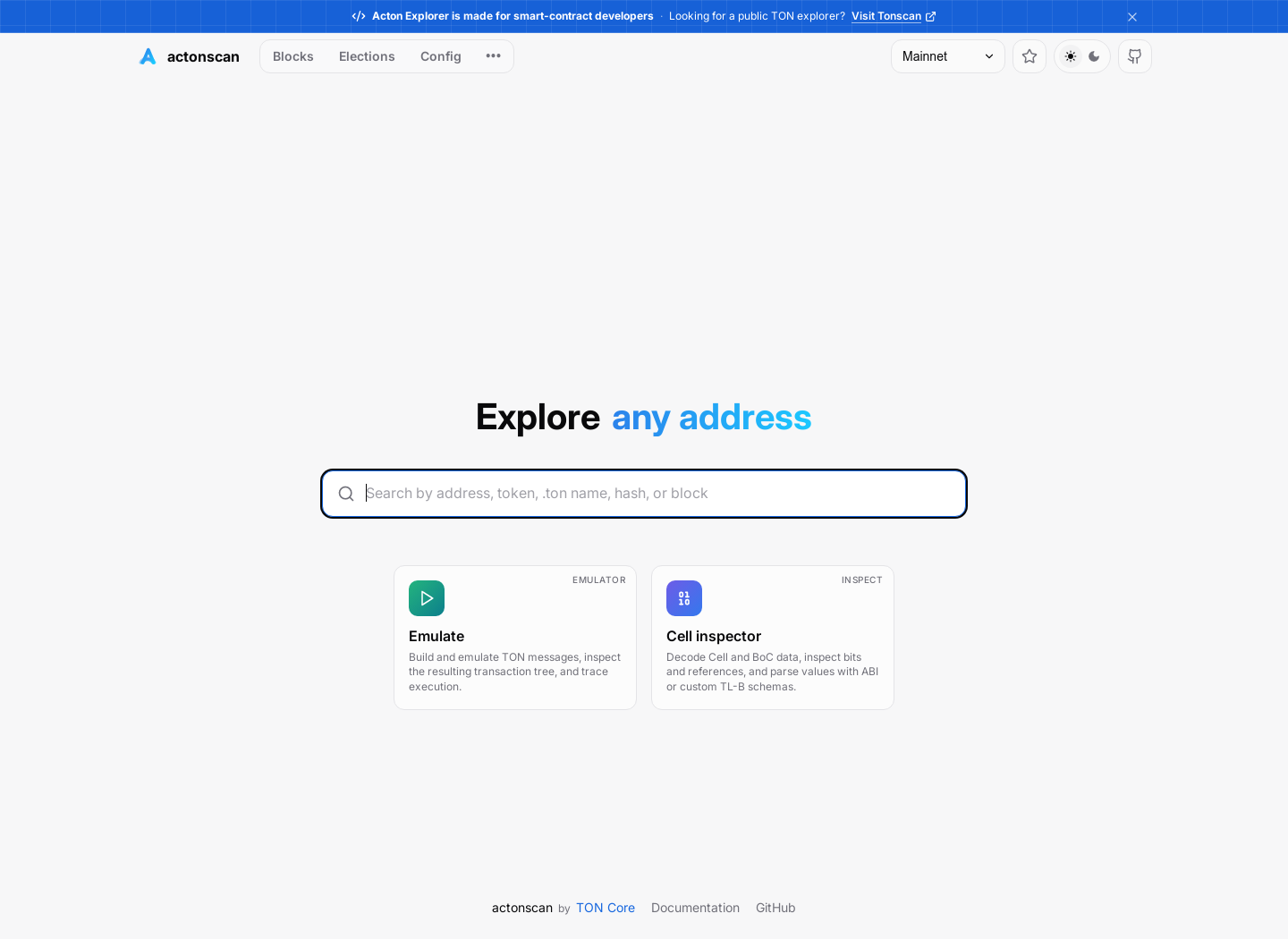
Networks
Actonscan supports browsing TON Mainnet and Testnet networks, as well as custom networks managed by Acton Studio's virtual environments or configured with compatible API v2 and API v3 endpoints. To switch a network, use the menu on the top right.
Additionally, Actonscan links specify the network with ?network=mainnet or ?network=testnet. For example, a link to an address on the mainnet takes the following form: https://actonscan.com/address/EQCxE6mUtQJKFnGfaROTKOt1lZbDiiX1kCixRv7Nw2Id_sDs?network=mainnet.
Accounts and assets
Account pages show status, balances, history, jettons, and non-fungible tokens (NFTs). Contract views expose code and storage; available application binary interfaces (ABIs) describe messages and get-methods. Verified source files are available for contracts with matching published sources. The ABI catalog exposes known contract interfaces.
- Find an account or transaction.
- Check a transfer.
- Inspect jettons and NFTs.
- Inspect a smart contract and call get-methods.
Transactions and execution
A transaction page combines an operation summary, value flow, transaction details, and a message tree. Select individual transactions to inspect their incoming messages, fees, and execution phases. The debugger replays a transaction to expose its virtual-machine execution.
Additional tools
- Blocks, elections, and configuration expose network activity and parameters.
- Address converter displays alternative address forms.
- Cell inspector parses BoC-serialized cell data.
- Transaction emulator evaluates transactions out of constructed messages without submitting them to the blockchain.
Find an account or transaction
To find an account, copy its address from a wallet app or the application being investigated. Paste it into search and press Enter. Actonscan accepts raw and user-friendly addresses. Check the address and network on the result, then open History for transactions, Tokens for jettons, or Collectibles for NFTs. An account can hold Gram without deployed code; check its status before treating it as an active contract.
To find a transaction, open its link from the wallet app. If there is no link, search the sender or recipient address and find the entry in History by time, counterparty, and amount. If application logs or an API response provide a transaction hash, paste it into search. A wallet submission may instead return a message hash — use message lookup to find its transaction.
Recent activity may take time to appear in an explorer.
Check a transfer
- Open the transaction and check Event overview for the asset, amount, sender, and recipient.
- Open Transactions and follow the messages to the recipient. A successful sender transaction shows that a message was sent; check the receiving transaction too.
- Inspect the receiving transaction's Compute phase and Action phase for errors. Check Value flow or State changes for the resulting balance or owner.
- Follow any bounce or refund before concluding that the transfer arrived.
For a jetton, compare the master address with the intended token. The jetton amount is in the message body; attached Gram pays for processing. For an NFT, compare the item address and owner. Names and images do not identify either asset. The account page shows the latest state; use the historical transaction to check what happened at a particular time.
Read a trace
A trace follows messages across accounts. Each node in Actonscan's message tree shows one account's transaction.
- Start at the sender's transaction. Event overview summarizes recognized operations, but its label does not establish that every step succeeded.
- Follow the message to the next account. Select its node and check Message route, attached Gram, and Parsed body.
- Check Compute phase and Action phase, then follow outgoing messages until reaching the intended recipient, a bounce, or a refund.
- Use Value flow and State changes to confirm the result. If a branch is pending or missing, let the explorer load or index it before declaring failure.
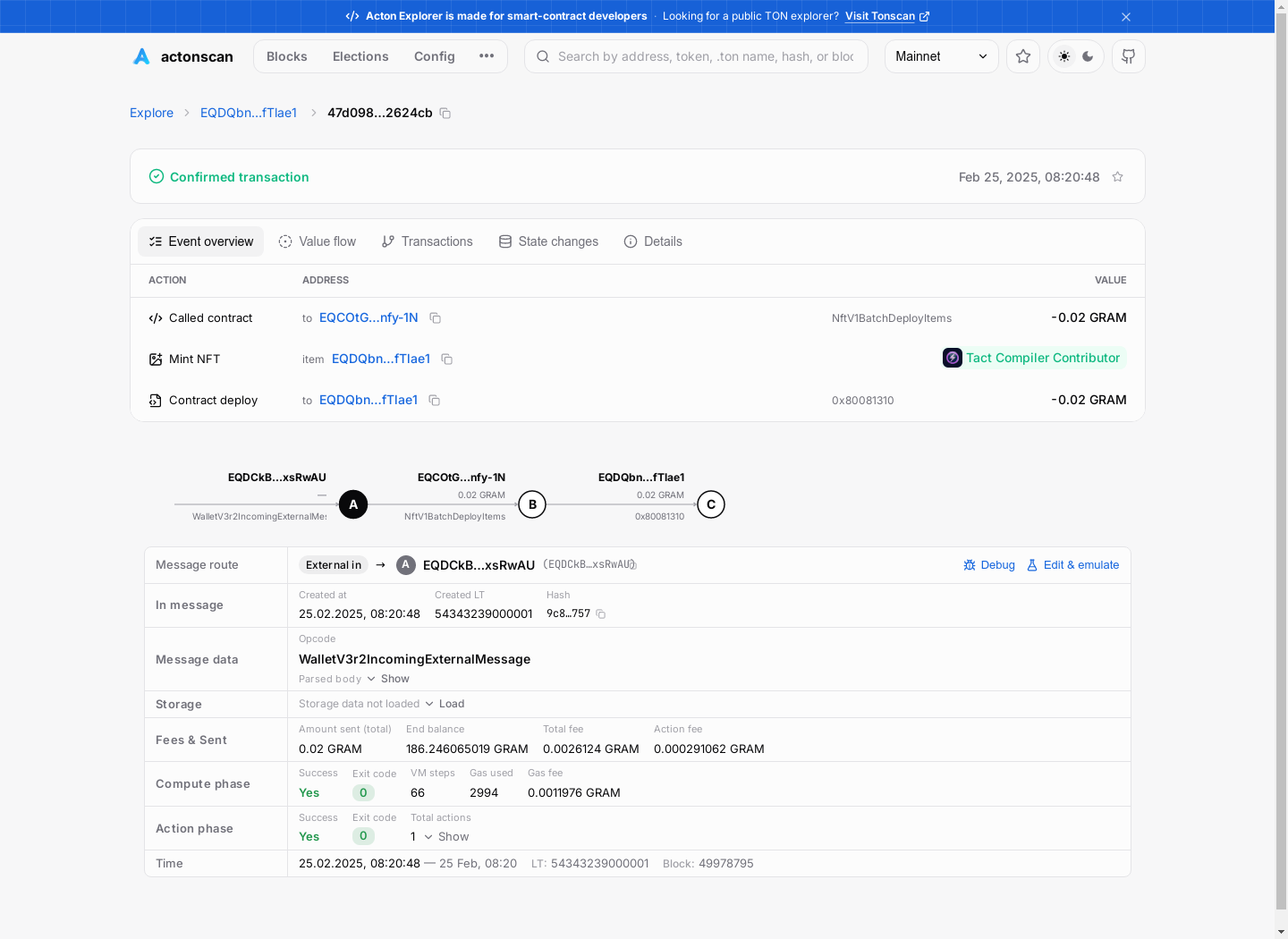
This NFT mint trace runs from a wallet to a collection and then to an NFT item. Select each node to distinguish the wallet's request from the item's deployment.
Investigate a failed operation
Find the transaction that should have produced the missing result. One operation can span several transactions, and a successful sender transaction does not establish that the recipient accepted its message.
- Follow the trace from the sender to the intended recipient.
- Select the receiving transaction. Check Compute phase for its success flag and exit code. A skipped phase differs from failed execution.
- Check Action phase separately: computation can succeed while an outgoing action fails.
- Follow any Bounced message or refund. Not every failed request bounces, and fees can reduce returned Gram.
- If the phases succeeded but the result is missing, inspect the decoded response and refund branch. A contract can reject a request through its own messages without a TVM error.
In this failed jetton transfer, the receiving jetton wallet's compute phase exits with 48, labeled WalletErrors.NotEnoughGas by its ABI. The failure belongs to the receiving transaction; 48 is a contract-specific code. Record the failing account, transaction link, and exit code before changing the contract or resending the request.
Inspect jettons and NFTs
Jettons
- On the owner's account, open Tokens and select the jetton. Its balance belongs to a separate jetton wallet contract.
- Open that wallet and check its owner and jetton master addresses. Compare the master address with the one supplied by the token project or application.
- Use the token's decimals to interpret the raw amount. The jetton wallet's Gram balance pays fees; it is not the token balance.
To verify the wallet relationship, call get_wallet_data on the jetton wallet using the get-method steps. See jetton wallet data for the returned fields.
NFTs
- On the owner's account, open Collectibles and select an item, or search its address directly.
- Check the item address, owner, and collection. The address identifies the NFT; its name and image can change or be copied.
- To check a past owner, open the item's History and inspect the transfer. The account page shows the latest owner.
Missing images or metadata do not establish that a token is absent. Check its contract address and account state.
Inspect a smart contract
Open a contract address in Actonscan. For example, open the Tether USD (USDT) master.
- Check the account status. An uninitialized account has no deployed code.
- Open the Contract tab. Use Source for published code, Storage for current account data, and ABI for recognized messages and methods.
Storage shows current state when there is a matching source or a storage schema. For an older state, inspect the historical transactions or register a custom source artifact.
Call a get-method
Get-methods (or getters) are used to read contract state without sending a transaction or modifying the state.
- On the contract page, open the Methods tab and select a method. Most of the get-methods of standard contracts do not require arguments.
- Select Run and inspect the returned values.
If the Methods tab is absent, the explorer may lack an ABI for this contract, but the code may still have get-methods. In such cases, call getters via blockchain APIs.
Decode a message body
Select the message in a transaction's trace. An internal message's value is attached Gram; its body can contain contract-specific data such as an opcode and a jetton amount.
- Check Message route for sender and recipient.
- Under Message data, inspect the opcode and expand Parsed body with Show, if available.
- Interpret fields using the receiving contract's interface. A decoded opcode identifies a requested operation; it does not establish that the contract completed it. Check the receiving transaction's execution result.
If the body is not decoded, select Copy raw body and paste it into Actonscan's cell inspector. Inspect the bits and references.
If the contract publishes a TL-B schema, use Parsing options to parse the body with that schema. An unknown opcode may be valid for a contract the explorer does not recognize.
Replay a transaction
Replay a transaction when its exit code and messages do not explain a contract failure. Select the receiving transaction that ran the relevant code.
- Select Debug beside Message route. It allows replaying historical transactions.
- In Disassembled, step through the instructions and inspect the stack and gas usage before the failure. Use Sources if source-level mapping is available.
- Compare the replay with the recorded Compute phase result on the transaction page.
There, Edit & emulate changes inputs to simulate another outcome — that result did not occur on-chain. Neither Debug nor Edit & emulate actions submit a message.
If the debugger reports Trace incomplete, rely on the recorded transaction for the actual result.